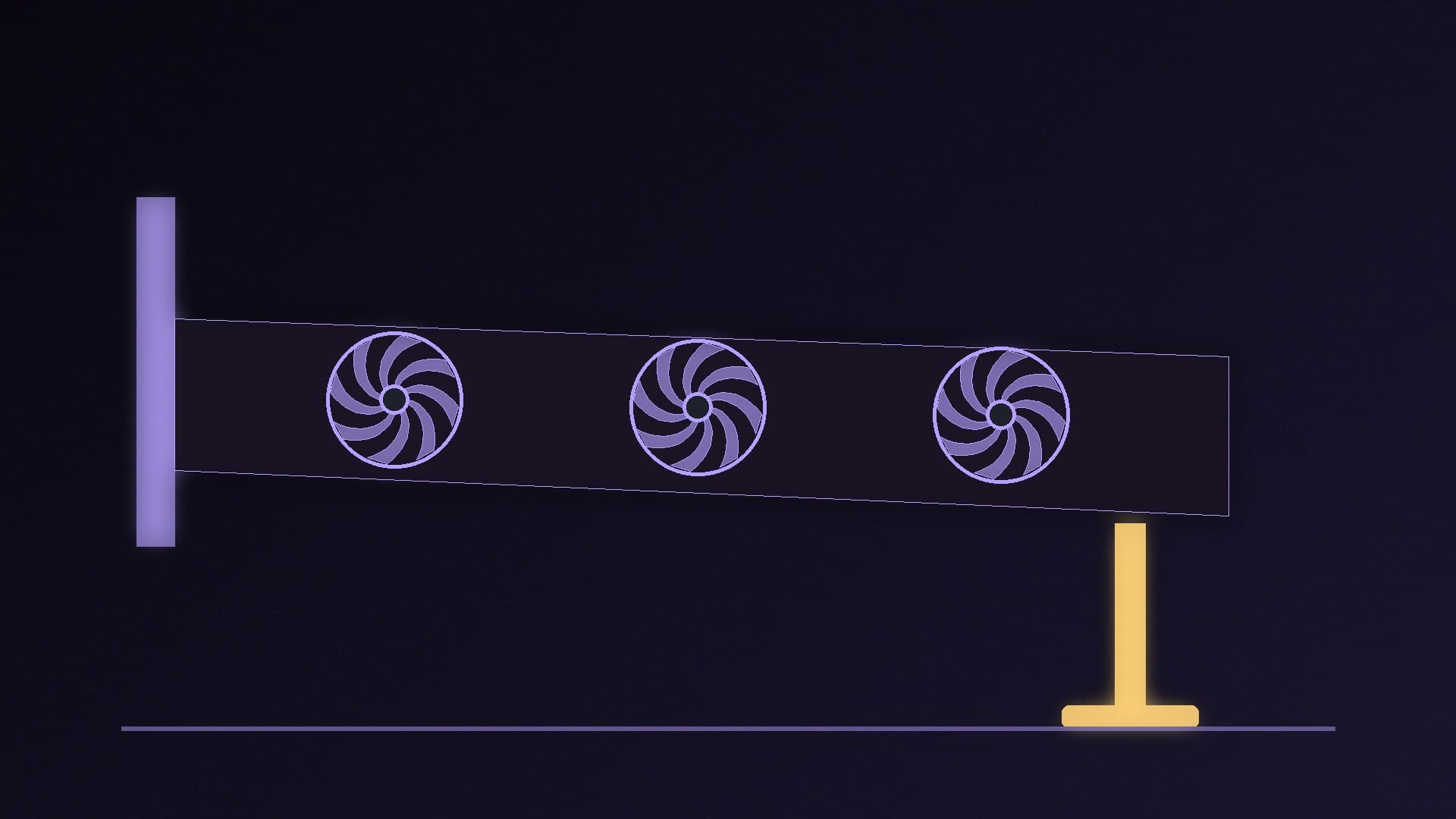
Modern graphics cards are long and heavy, and they're held in place at only one end: the PCIe slot and the screws at the back of the case. Over time the far end can droop, which is known as GPU sag. Corsair puts it down to the card's size and weight and the motherboard slot it sits in, and says that even reinforced PCIe slots don't always prevent it. The fix is cheap and quick. Forge PC hasn't tested specific brackets; the steps below come from ASUS, PNY, HP and Corsair's own guides.
How to tell if your card is sagging
Power down, unplug the PC and look at the graphics card side-on with a torch. If the end furthest from the case's rear slots sits noticeably lower than the end with the bracket, the card is sagging. Check that the card is fully seated in the slot and that its rear bracket is screwed to the case first: ASUS's instructions start with securing the card to the chassis with screws before fitting any holder. If you're unsure, our graphics card installation guide covers fitting it properly.
Option 1: use the holder that came with your card
Some cards include a support. ASUS says certain models in its RTX 4000 and RTX 5000 series and RX 7000 and RX 9000 series come with a graphics card holder. To check an ASUS card, look up the model on ASUS's website and see whether the Tech Specs page lists a "Graphics Card Holder" under Accessories. Other brands' boxes are worth checking too.
ASUS's installation steps for its holder are:
Install the graphics card and secure it to the chassis with screws.
Loosen the holder's screw and adjust its extension.
Find the support point on the card. ASUS says this is typically the upper-right corner near the card's centre of gravity.
Find a flat, sturdy spot on the case below that point and attach the holder's base there (ASUS's base is magnetic, so it sticks to steel case panels).
Adjust the height so the holder just supports the rear of the card, with its top in firm contact with the card's housing.
Tighten the screw, and make sure the holder is stable and doesn't wobble or shift.
Option 2: fit a separate support bracket
If your card didn't come with a holder, a separate support is the usual fix. Corsair says brackets come in adjustable and fixed styles, and some cases include one: our best budget PC case guide notes a case that ships with a GPU anti-sag bracket. Designs vary:
Stand-style supports sit on the bottom of the case or the PSU shroud and prop the card up from below. HP's steps are to place the support between the card's shroud and the case floor, make sure it supports the card without pushing it upward, and check it doesn't touch the fans or cables.
Card-mounted holders, such as PNY's, screw into the card's backplate and are adjusted to length to steady it. PNY says its screw holes are at the north or east side of the backplate, and that you adjust the location and height until the card is firmly supported.
Case-mounted arms attach to the case's rear slots or frame and reach under the card. Follow the case or bracket maker's order of installation.
The key rule is support, don't lift. HP says the support should carry the card's weight without pushing it upward, and ASUS says to adjust its holder so it just supports the rear of the card. Raise the support only until the card sits in its normal, level position.
Option 3: mount the card vertically
Some cases support mounting the graphics card vertically with a PCIe riser cable, which Corsair says reduces strain on the PCIe slot and eliminates sagging. HP notes that not every case has the clearance or rear I/O for a vertical card. You'll need a case that supports it, a compatible riser and enough space between the card's fans and the side panel. After any riser install, it's worth checking the card's PCIe link speed to make sure it's running at the expected width and generation.
After you've fitted it
HP's checklist is a good one to follow before closing the side panel:
Press gently on the card to confirm the support is stable.
Make sure nothing touches the GPU fans, and that no cables or RGB leads are trapped.
After switching on, check the fans spin freely and temperatures are normal, for example with HWiNFO.
Look again: the card should sit level and properly aligned.
Our verdict
If your card droops at the far end, first check it's fully seated and screwed to the case, then fit support under its far end, near the centre of gravity: use the holder in the box if there is one, or a stand, card-mounted holder or case arm if not. Raise it only until the card sits level. A vertical mount also works if your case supports it. Forge PC hasn't tested specific brackets; the steps follow ASUS, PNY, HP and Corsair's guides.