CRITICAL_PROCESS_DIED is a Windows blue screen that can appear during normal use, after a Windows or driver update, or every time the PC starts. It sounds alarming, but it's usually caused by something that changed on the PC, such as a new driver, a damaged system file or a failing drive, and Microsoft lists a clear set of checks to work through.
What the error means
Microsoft gives CRITICAL_PROCESS_DIED the bug check code 0x000000EF (often written 0xEF). It means a critical system process has stopped. Windows can't carry on safely without these processes, so when one ends unexpectedly, or its state becomes corrupted or damaged, Windows stops with a blue screen.
Microsoft lists the built-in critical processes as csrss.exe, wininit.exe, logonui.exe, smss.exe, services.exe, conhost.exe and winlogon.exe. Software developers can also set their own services to restart the PC if they fail.
The blue screen itself doesn't usually tell you which program or driver caused the process to fail, so the fix is about tracking down what changed. Microsoft's advanced troubleshooting guide says about 70% of stop errors are caused by third-party driver code and about 10% by hardware issues.
Before you start
If Windows crashes before you reach the desktop, you'll need the Windows Recovery Environment (WinRE). Microsoft's recovery options guide lists the fixes you can run from WinRE under Troubleshoot, including uninstalling updates (Troubleshoot > Advanced options > Uninstall updates), System Restore and Reset this PC. Our guide to Startup Repair explains how to get into WinRE. If your drive is encrypted with BitLocker, Microsoft says you'll need your recovery key for most WinRE options. See how to find your BitLocker recovery key before you go any further.
Microsoft also recommends starting in Safe Mode if you have trouble restarting and doing the remaining steps from there. Our comparison of Safe Mode vs clean boot explains the difference between the two.
Step 1: Undo recent changes
Microsoft's first advice is to work out what changed before the error appeared.
New hardware: if you fitted new hardware just before the crashes started, shut the PC down, remove it and try again.
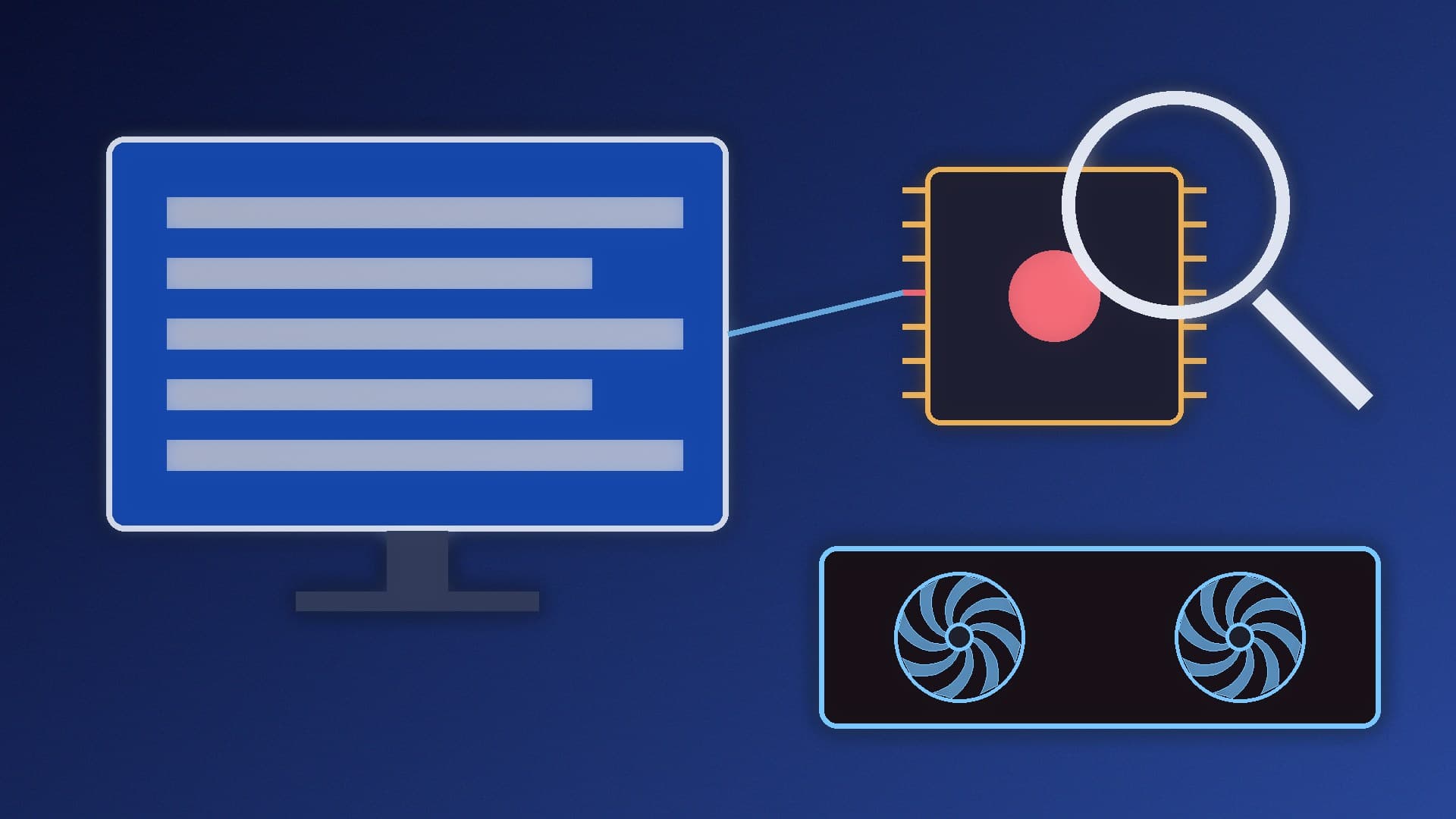
New drivers or system services: if you've recently installed drivers or software that runs as a service, such as RGB, fan control, tuning or security tools, try removing or updating them.
A recent Windows update: Microsoft's recovery options guide says that if the problem started after a recent update, uninstalling it might fix it, without affecting your files or apps. See our guide to uninstalling a Windows 11 update.
Step 2: Repair Windows system files with DISM and SFC
Because this error is about a core Windows process failing, damaged system files are worth ruling out early. Microsoft's bug check page recommends the System File Checker, and Microsoft's SFC guide says to run DISM first, as it provides the files SFC needs for repairs.
Search for cmd, right-click Command Prompt and select Run as administrator.
Type DISM.exe /Online /Cleanup-image /Restorehealth and press Enter. It can take several minutes.
When it's finished, type sfc /scannow and press Enter. Don't close the window until verification reaches 100%.
If SFC says it couldn't perform the requested operation, Microsoft suggests running the scan in Safe Mode. Our guide to repairing Windows 11 with DISM and SFC explains what each result means, and SFC vs CHKDSK covers when to check the drive itself.
Step 3: Check Device Manager and Event Viewer
Microsoft suggests looking in Device Manager for any device marked with an exclamation mark (!), which indicates a problem. Right-click it, select Update driver, and if that doesn't help, try disabling or uninstalling the device. Our guide to updating drivers in Device Manager covers the details, and if a graphics driver update came just before the crashes, see how to roll back a graphics driver.
Next, check the System log in Event Viewer. Microsoft recommends looking for critical errors that happened in the same time window as the blue screen, as they can point to the device, driver or service involved.
Right-click Start and select Event Viewer.
Go to Windows Logs > System.
Look for Critical and Error entries just before the crash.
Our guide to using Event Viewer in Windows 11 explains how to filter the log.
Step 4: Scan for malware and check free space
Microsoft's bug check page recommends running a virus scan, as malware can corrupt disks and cause stop errors. Run a full scan with Windows Security or your antivirus program.
Microsoft also suggests making sure your Windows drive has enough free space, recommending 10% to 15% of the drive as a good target. If the drive itself might be failing, check its health with our guide to checking SSD health.
Step 5: Update Windows, the BIOS and firmware
Microsoft recommends installing the latest Windows updates (Start > Settings > Windows Update > Check for updates) and checking with your PC or motherboard maker for an updated BIOS or firmware. Our guide to updating your BIOS safely explains how to do that. Microsoft also suggests running any hardware diagnostics your PC maker supplies. Faulty memory can cause all kinds of crashes, so it's worth testing your RAM with MemTest86 too.
Step 6: Use System Restore or other recovery options
If none of the above helps, Microsoft suggests restoring Windows. Its recovery options guide lists several choices:
System Restore rolls back system files and settings to an earlier restore point, but doesn't touch your personal files. See how to use System Restore in Windows 11.
Point-in-time restore, on Windows 11 version 24H2 or later, rolls back the whole PC, including apps, settings and personal files, to a recent automatic restore point.
Reinstall Windows reinstalls the current version without affecting your files, apps or settings, on Windows 11 version 22H2 or later.
Reset this PC reinstalls Windows from scratch and lets you keep your personal files or remove everything. Microsoft says it's the most disruptive of these options, so try the others first.
Our comparison of System Restore vs Reset this PC helps you choose. If Windows won't start at all, try Startup Repair from WinRE first.
Step 7: Analyse the crash dump
If the error keeps coming back and you want to find the exact cause, the crash dump Windows saves is the next stop. Microsoft says working out the cause usually needs a debugger, and recommends comparing several dump files to look for something in common. Our guide to analysing a BSOD minidump with WinDbg explains how to use the !analyze -v command without being a developer.
For other blue screens, see our guides to fixing blue screen errors in Windows 11, PAGE_FAULT_IN_NONPAGED_AREA and INACCESSIBLE_BOOT_DEVICE.
Our verdict
CRITICAL_PROCESS_DIED (0xEF) means a core Windows process stopped unexpectedly, and the fix is usually to undo whatever changed. Start by removing new hardware, drivers or services, or uninstalling a recent Windows update. Then run DISM and SFC to repair system files, check Device Manager and Event Viewer, scan for malware and update Windows and your BIOS. If the crashes continue, System Restore or a reinstall of Windows that keeps your files will often sort it, with Reset this PC as the last resort.