Every modern desktop motherboard needs two power connections from the power supply: the big 24-pin ATX connector and at least one CPU power connector near the top of the board. Intel's PC building guide describes them as the two main connections, "an 8-pin CPU connector toward the top of the board and a 24-pin connector from the side". The CPU connector is the one people miss or get wrong, usually by plugging in a graphics card cable instead. This guide explains how to identify the right cable and connect it, based on Corsair's connector guide and PSU manual and Intel's build guide.
EPS12V vs PCIe: the two 8-pin plugs
Most power supplies come with two kinds of 8-pin cable that look alike:
| CPU (EPS12V / ATX12V) | Graphics card (PCIe) |
|---|
Plugs into | CPU power socket at the top of the motherboard | Graphics card (and some motherboards' extra PCIe power sockets) |
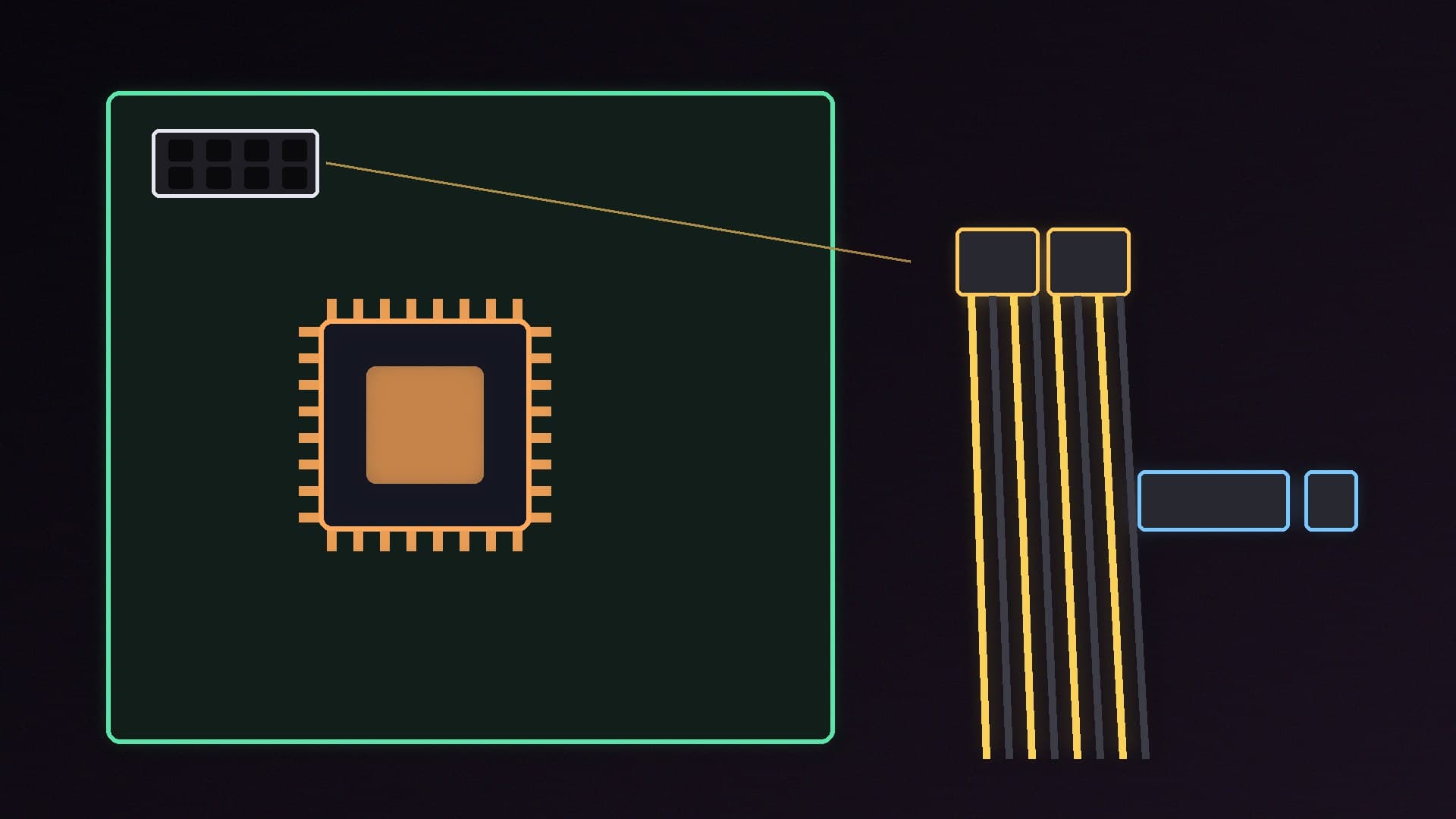
How it splits | 4+4: two 4-pin halves | 6+2: a 6-pin block with a 2-pin piece on the side |
Corsair's cable name (HXi 2025) | EPS/ATX12V 8-pin (4+4) | PCIe 8-pin (6+2) |
Corsair is blunt about it: "8-pin connectors on video cards are NOT THE SAME as EPS12V connectors." Corsair's HXi 2025 manual likewise tells you to use as many EPS12V cables as your board needs and "do not mistake them for PCIe cables". Corsair also says all its connectors are keyed, so a correct plug goes in one way only. If a plug needs force, stop: it's probably the wrong cable or the wrong way round.
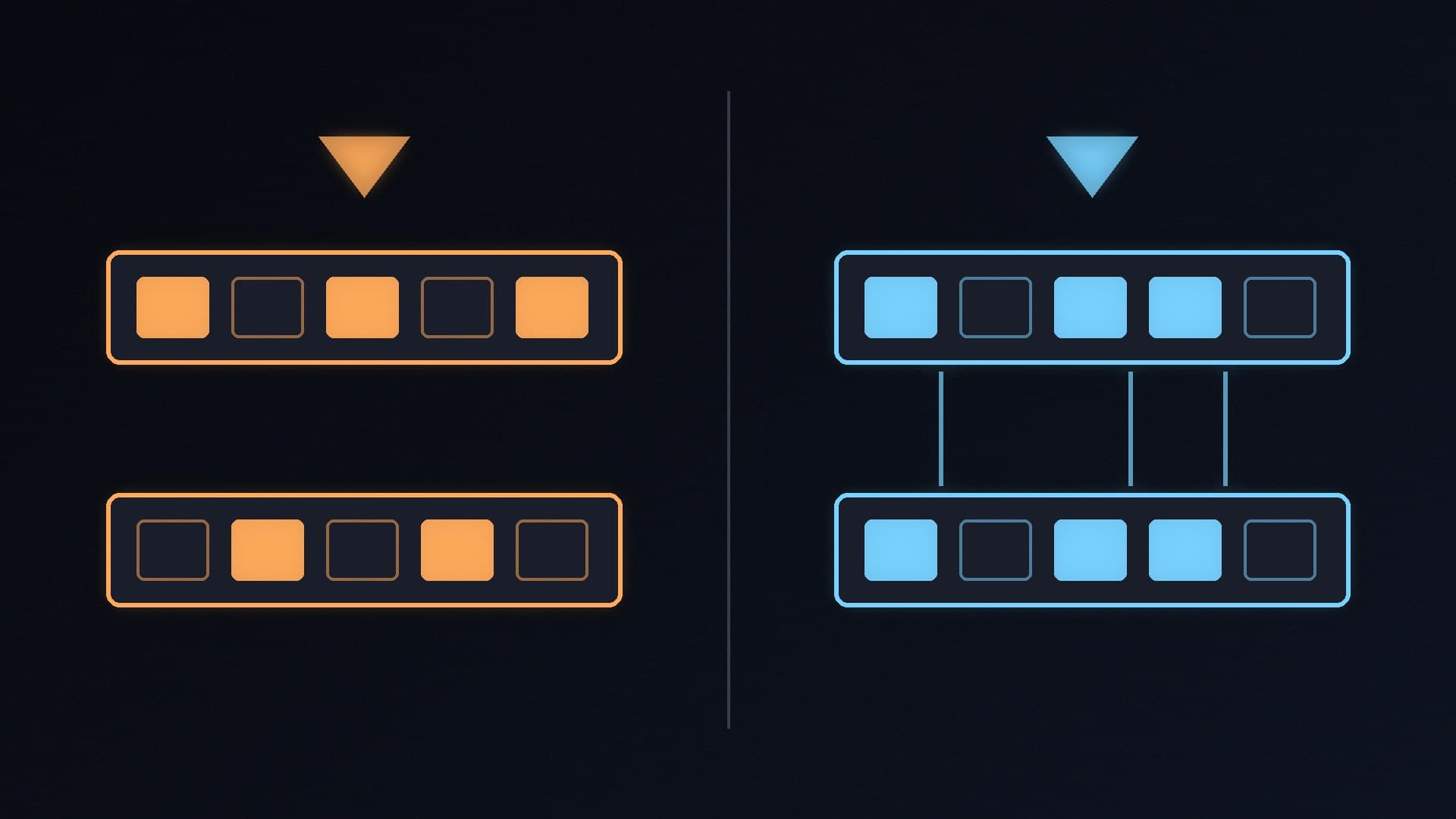
The simplest check is how the plug splits. A CPU cable separates into two equal 4-pin halves; a PCIe cable has a 6-pin block with a 2-pin piece hanging off the side.
Step 1: Find the CPU power socket
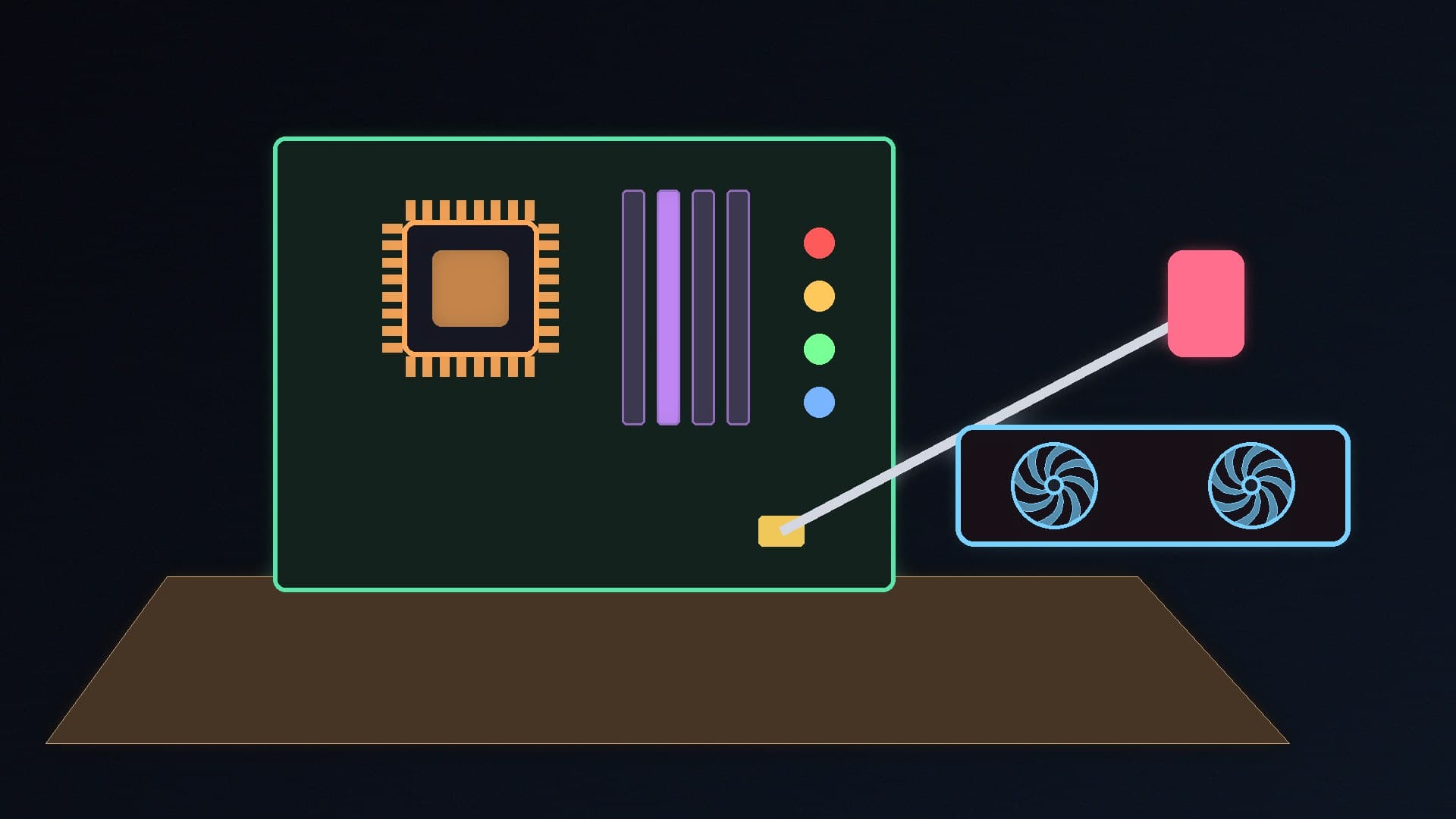
Intel's build guide places the 8-pin CPU connector toward the top of the board. Corsair notes that boards may use a single 4-pin, a 4-pin plus an 8-pin, or two 8-pin connectors. Your motherboard manual shows where they are and what they're labelled.
It can be easier to route this cable before a tall CPU cooler is fitted, because the socket sits close to the cooler and the top of the case. On cases with a cable cut-out at the top of the motherboard tray, route the cable through there.
Step 2: Connect the cable
Switch off the power supply and unplug it from the wall.
If your PSU is modular, plug the PSU end of the CPU cable into the PSU. Only use cables made for your power supply: Corsair's manual says to use only the DC cables included with the new PSU, unless old cables are genuine Corsair cables of the same type. See how to check modular PSU cables are compatible.
For an 8-pin socket, hold the two 4-pin halves together and push the plug in with the latch facing the right way until it's fully seated, as Corsair advises. Corsair's manual also says to make sure all cables are tightly connected.
For a 4-pin socket, pull the 4+4 plug apart and use one half. Corsair says it doesn't matter which half you use.
If the board has a second CPU socket, see below.
Do you need to connect the second CPU socket?
Many enthusiast boards have 8+8 or 8+4 CPU sockets. Corsair's advice is to check your motherboard manual, because the extra connector "may only be necessary if you plan to overclock". It also says there's no downside to connecting both if your PSU has enough CPU cables, so the safe option is to fill both when you can. If your PSU has only one EPS cable, check the manual's requirements before using a high-power CPU on that board.
Some motherboards also have a PCIe-style power socket for extra slot power. Corsair says these take a PCIe cable, not an EPS cable, so check the label on the board.
If the PC won't start after connecting
If a new build doesn't start, check that the CPU plug is fully seated and that it's a CPU (EPS12V) cable, not a PCIe cable. Our guides on fixing a PC that won't turn on and testing parts outside the case cover the next steps.
Our verdict
The CPU power cable is the 4+4 EPS12V plug, not the 6+2 PCIe graphics cable, even though both are 8-pin. Plug it into the socket toward the top of the motherboard with the latch facing the right way until it's fully seated, and split it in half only for a 4-pin socket. If the board has a second CPU socket, Corsair says it may only be needed for overclocking, but there's no harm in connecting both. Never force a plug, and only use the modular cables that came with your power supply.