Windows 11 already includes antivirus software. The useful question is not which free trial to install on a new PC, but whether the built-in protection is enough, and what a paid product would add that you do not already have.
Forge PC has not commissioned independent antivirus tests, and we are not ranking third-party suites with invented detection scores. This comparison uses Microsoft's official description of Microsoft Defender Antivirus, Windows Security, and the separately sold Microsoft Defender subscription. We do not claim lab results those pages do not publish.
If you are installing Windows on a new machine, start with our Windows 11 install guide. A working backup of your files matters at least as much as antivirus, because ransomware and a failed disk are different problems; Microsoft's own backup tools are covered in its official Windows Backup and File History documentation.
What is already in Windows 11
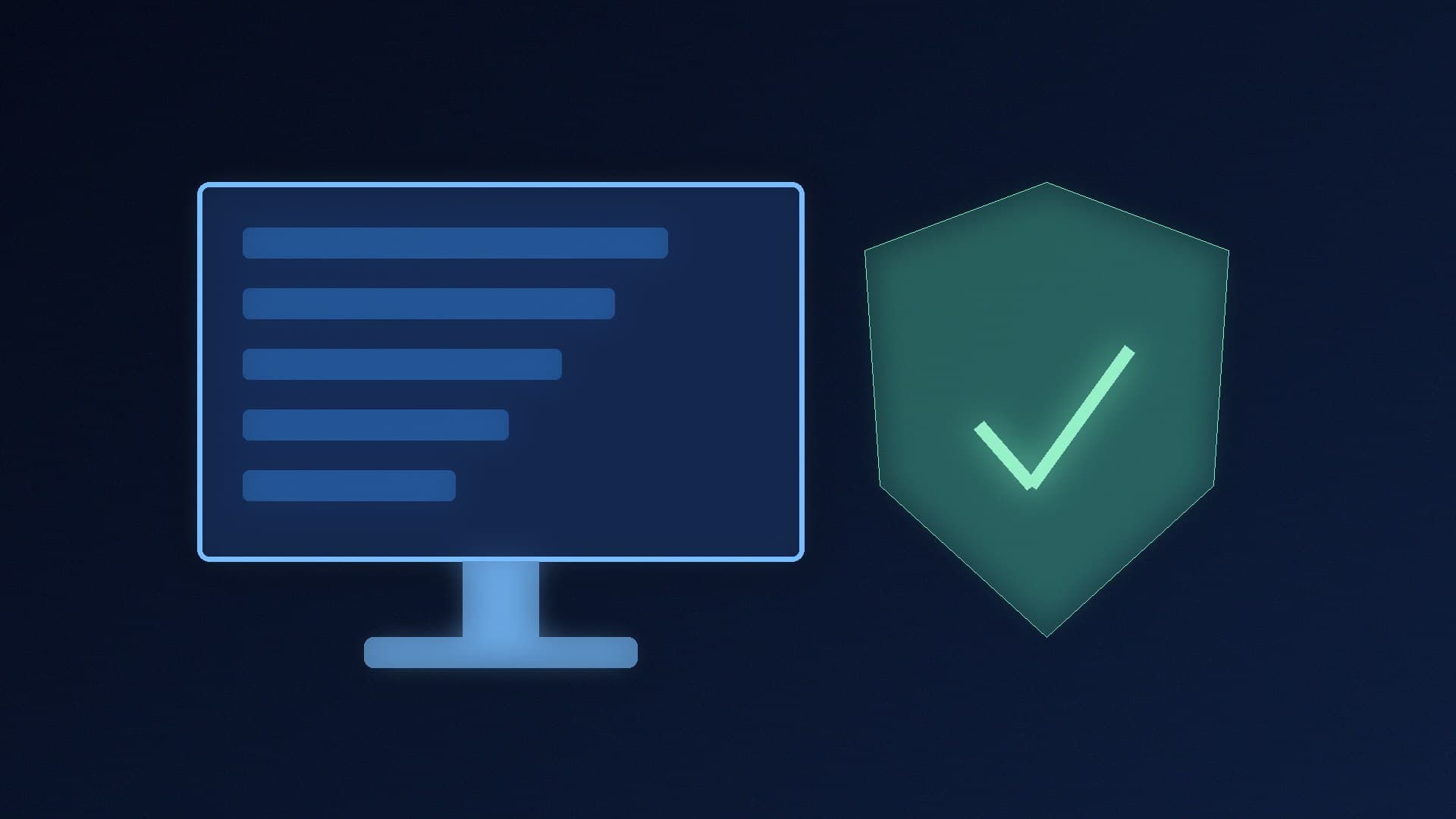
Microsoft says Windows 11 devices include Windows Security, and that Microsoft Defender Antivirus is real-time, always-on protection against viruses and malware. On the Windows security page, Microsoft also answers the direct question: you do not have to pay extra for this antivirus protection.
The same official pages describe a set of related, built-in features rather than a single switch:
Microsoft Defender Antivirus for always-on malware defence.
Microsoft Defender SmartScreen, which warns you about a potentially malicious website, app or download.
Windows Firewall, which blocks unwanted network traffic.
Browser protections in Microsoft Edge, including SmartScreen.
Optional extras such as Windows Hello, passkeys, Find My Device, and VPN apps from the Microsoft Store. Those are identity, theft and network tools, not a replacement for antivirus.
Microsoft's Windows 11 security book and Defender for Endpoint documentation describe Defender Antivirus as using behavioural, heuristic, cloud-delivered and machine-learning protection. For a home PC, the practical version of that is: keep Windows Update running, keep Defender turned on, and check the status in the Windows Security app under Virus & threat protection.
Open Windows Security from the Start menu, or Settings > Privacy & security > Windows Security. If another antivirus is installed and running, Windows will usually turn Defender's real-time protection off and leave the third-party product in charge. Running two real-time antivirus engines at once is a common source of conflicts; Microsoft's model is one active real-time product.
Built-in Defender is not the paid Microsoft Defender app
The names are easy to mix up. Microsoft's consumer security page mentions Microsoft Defender as a product that "works with Windows Security to protect your PC and gives you advanced protection across devices." A footnote on that page says the subscription is sold separately, and that app availability varies by geography.
That paid Microsoft Defender product is not the same thing as the free Microsoft Defender Antivirus already in Windows. If a shop page or a pop-up invites you to "upgrade Defender", read the small print. You may already have the built-in antivirus, and the paid offer may be a cross-device subscription on top.
We are not reviewing the paid Microsoft subscription here, because this article is about whether a typical Windows 11 gaming or home PC needs to replace the built-in engine.
When a paid third-party suite might still make sense
Microsoft does not say you must never install another antivirus. It does say the built-in engine is the included, always-on protection for Windows 11. A paid suite can still be reasonable if you want extras that Windows does not bundle in the same way, for example:
A single subscription that also covers phones, tablets or a Mac.
A vendor's VPN, password manager or identity-theft features, if you actually want those and have read the terms.
A workplace requirement to run a specific product.
It is a weaker reason to pay if all you want is "some antivirus, because Windows does not have any". On a current, updated Windows 11 PC, that premise is false, according to Microsoft itself.
If you do install a third-party product, use the vendor's official site or the Microsoft Store, let it be the only real-time antivirus, and uninstall it cleanly if you go back to Defender. A leftover trial that has expired can leave you with disabled built-in protection and no paid replacement.
Paid software also does not remove the need for ordinary hygiene: do not run unknown attachments, keep the browser and Windows updated, and keep a backup you can restore. Antivirus is one layer, not a complete plan.
How to check that Defender is actually on
Open the Start menu, type Windows Security, and open Virus & threat protection. You want real-time protection on, and the last definition update to be recent. Windows Update should already be delivering those definitions; if the app says protection is managed by another product, uninstall or disable that product before you assume Defender is watching.
If you have just finished a Windows install, give the PC time to finish updates before you judge the status. A brand-new install can show as out of date for a short period until the first security definitions arrive.
Paid pop-ups that appear in a browser are not part of Windows Security. If a website claims your PC is infected and demands a phone call or a download, close it. Check the status in the official Windows Security app instead.
Our verdict
On a Windows 11 home or gaming PC, start with the built-in Microsoft Defender Antivirus and Windows Security. Microsoft documents it as free, always-on, real-time protection, and you should not pay merely because you think Windows ships without antivirus. Consider a paid suite only if you want extras, cross-device coverage, or a product your workplace requires, and do not run two real-time engines at once. We have not ranked third-party suites in a lab; this advice follows Microsoft's official description of what is already in Windows.