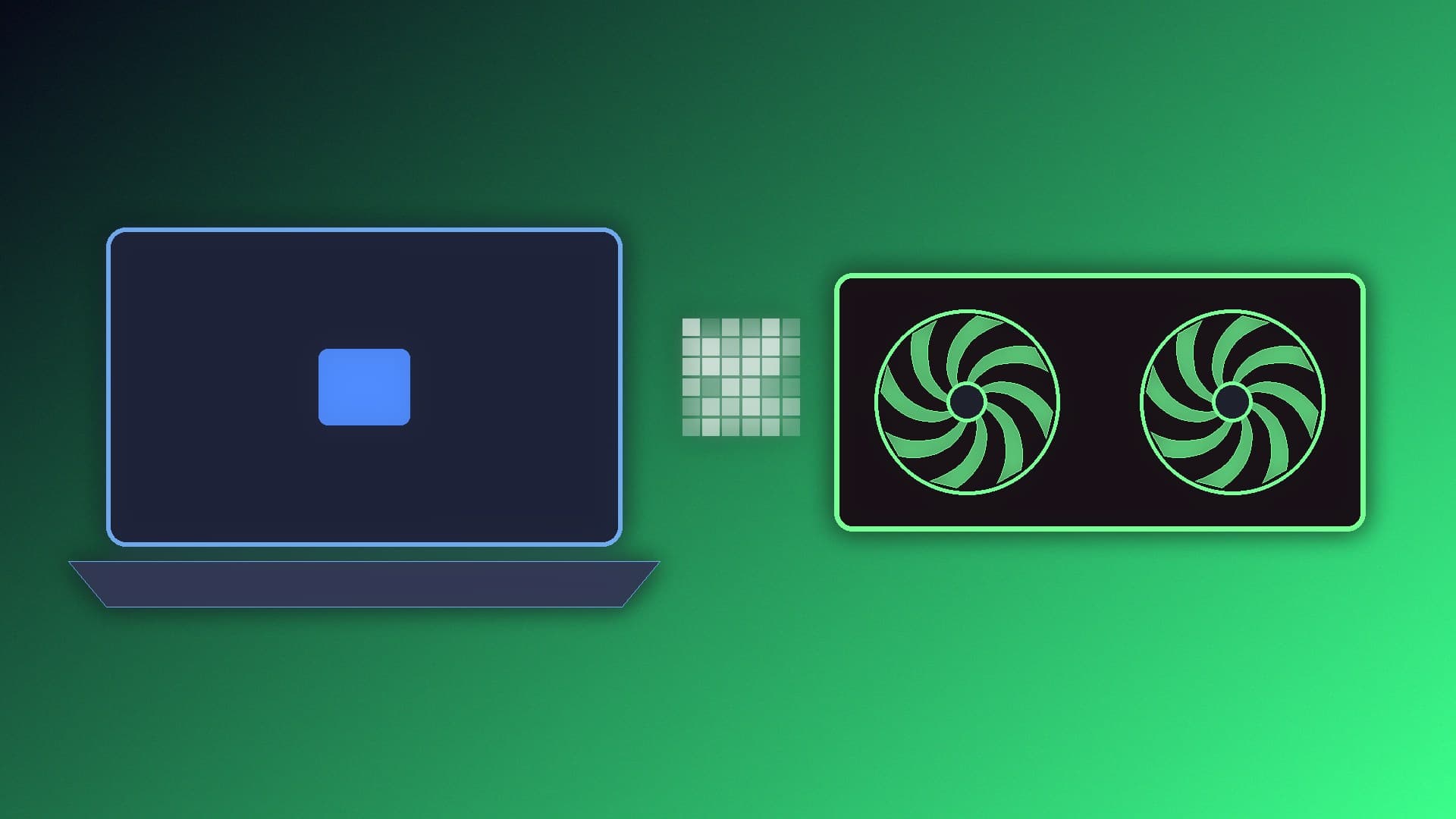
Microsoft's Automatic Super Resolution (Auto SR) and NVIDIA's DLSS both use AI to make games look sharper while rendering fewer pixels. They're built for very different PCs, though. Auto SR is part of Windows and runs on the NPU in Copilot+ PCs and some handhelds. DLSS runs on the Tensor cores in GeForce RTX graphics cards and has to be built into each game. This comparison uses Microsoft's Auto SR support page and NVIDIA's DLSS page, both read on 28 November 2026.
The short version
| Auto SR | DLSS |
|---|
Made by | Microsoft (part of Windows 11) | NVIDIA |
Runs on | The NPU in a Copilot+ PC or handheld | Tensor cores in a GeForce RTX GPU |
Hardware | AMD Ryzen AI, Intel Core Ultra Series 3 or Arc G3 with AI Boost NPU, Snapdragon X or X2 | GeForce RTX 20, 30, 40 and 50 Series (feature support varies) |
Game support | Works on existing games without the game adding it, within limits (DirectX 10 or later, x64 or Arm64) | Games and apps have to integrate DLSS |
Frame generation | Not part of Auto SR (Microsoft describes upscaling only) | Frame Generation on RTX 40 and 50 Series; Multi Frame Generation on RTX 50 Series |
How you turn it on | Game Bar (Win + G), a Windows notification or Windows Settings | In the game's own settings; the NVIDIA app can update DLSS in supported games |
Where Auto SR fits
Auto SR is aimed at thin-and-light Copilot+ laptops and Windows handhelds, where integrated graphics may struggle to run demanding games at the screen's full resolution. Microsoft describes it as bringing upscaling to "a player's existing game library": the game renders at a lower resolution and Windows upscales the image on the NPU.
Microsoft's requirements are fairly strict:
Hardware: A Copilot+ PC with an AMD Ryzen AI processor (including the ROG Xbox Ally X and X20), an Intel Core Ultra Series 3 or Arc G3 processor with an AI Boost NPU (including the MSI Claw 8 EX AI+), or a Snapdragon X or X2 Series processor.
Software: Windows 11 version 24H2 or later, the latest graphics and NPU drivers, and the latest Auto Super Resolution package from the Microsoft Store.
Games: DirectX 10 or later, running as native x64, x64 under emulation, or Arm64. Games that use x86 (32-bit), DirectX 9, Vulkan or OpenGL aren't supported.
Resolution: A display of 1080p or higher, with the game rendering at a lower resolution. Microsoft recommends roughly 720p to 1080p on AMD, 800p to 1080p on Intel and 800p on Snapdragon.
Display mode: Fullscreen or exclusive fullscreen. For borderless-windowed games, Microsoft suggests changing the display resolution instead, for example with the Maximum display resolution setting in Windows.
There are two modes. Microsoft says Quality mode supports games running at up to about 70-75fps, and Performance mode up to 120fps. Other limits are worth knowing: Auto SR doesn't currently support native HDR, it only works on the primary display adapter, and screen captures generally won't show the upscaled image. Microsoft also says some games may render small text or UI elements poorly at the lower resolution, and it keeps a verified list of games that avoid these problems.
To switch it on, start the game, press Win + G and open Widgets > Display > Graphics, then turn on Auto SR for that game. You can also enable it for one game in Settings > System > Display > Graphics > Custom settings for applications, or for all supported games under Default settings on the same page. For more on Microsoft's recent Auto SR expansion, see our Auto SR news story. If you're not sure your laptop qualifies, see how to check if your PC is a Copilot+ PC.
Where DLSS fits
DLSS is a family of technologies for GeForce RTX graphics cards. NVIDIA's page lists:
DLSS Super Resolution, which uses AI to output higher-resolution frames from a lower-resolution input, using motion data and feedback from previous frames. NVIDIA's support table shows it on RTX 20, 30, 40 and 50 Series cards.
DLAA, which uses the same Super Resolution technology as anti-aliasing at native resolution. It's supported on all four RTX generations.
Frame Generation, which uses AI to generate extra frames, with NVIDIA Reflex to keep responsiveness up. It's supported on RTX 40 and 50 Series cards.
Multi Frame Generation, which NVIDIA says generates "up to five frames per rendered frame" on RTX 50 Series cards. Dynamic Multi Frame Generation adjusts that multiplier automatically.
Ray Reconstruction, which replaces hand-tuned denoisers in ray-traced games with an AI network.
The catch is that DLSS only works in games and apps that integrate it. NVIDIA says it's in many big releases, with new games being added regularly, and that the NVIDIA app can update hundreds of games to newer DLSS models. Our guide to the DLSS override in the NVIDIA app explains how that works. Our explainer on DLSS, FSR and frame generation and our comparison of DLSS vs XeSS cover the GPU upscalers in more detail.
Can you choose between them?
Usually not, because they suit different machines. Most desktop PCs with a GeForce RTX card aren't Copilot+ PCs, so Auto SR isn't an option on them, and a Snapdragon or Ryzen AI laptop with only integrated graphics can't use DLSS. Microsoft says Auto SR works independently of a game's own upscaler, though results will vary when both are switched on. It also says Auto SR doesn't support multi-GPU setups where one GPU renders and a different one drives the display. If you have a Copilot+ laptop with a GeForce RTX GPU, check Microsoft's requirements for your exact setup.
Example RTX cards in our database that support DLSS Super Resolution, Frame Generation and Multi Frame Generation include the MSI RTX 5060 8GB Ventus 2X OC, ASUS RTX 5060 8GB Dual OC and MSI RTX 5070 12GB Ventus 2X OC.
Choose Auto SR if:
You game on a Copilot+ laptop or a handheld such as the ROG Xbox Ally X with no GeForce RTX GPU.
Your games are DirectX 10 or later and you're happy rendering at around 720p to 1080p.
You want upscaling in older games that will never add DLSS or FSR.
Choose DLSS if:
You have, or are buying, a GeForce RTX graphics card.
You play recent games that support DLSS, especially ray-traced ones.
You want frame generation as well as upscaling (RTX 40 or 50 Series).