Skip to content

NewsGPU

LM Studio Adds Agent Remote Control: Run Local AI Agents on Your Gaming PC From Another Device

LM Studio's Agent Remote Control, announced on 16 November 2026, lets you run its Bionic agent on one machine and control it from your other devices over the end-to-end encrypted LM Link connection built with Tailscale. A GPU-equipped desktop can do long-running agent work while you drive it from a laptop.

By , Editorial team

3 min read

LM Studio Adds Agent Remote Control: Run Local AI Agents on Your Gaming PC From Another Device

LM Studio announced Agent Remote Control on 16 November 2026. It lets you turn any machine running its Bionic agent into an "agent host", then create, manage and continue that machine's projects and sessions from your other devices.

Forge PC hasn't tested the feature yet. The details below come from LM Studio's announcement and its earlier blog posts introducing Bionic and LM Link.

What's new

Bionic is LM Studio's AI agent for open models, introduced in July 2026. Until now you ran it on the machine in front of you. With Agent Remote Control, LM Studio says that machine can be "a laptop, a PC, a dev box, or a VM in the cloud", and you operate it from another device as if you were sitting at it.

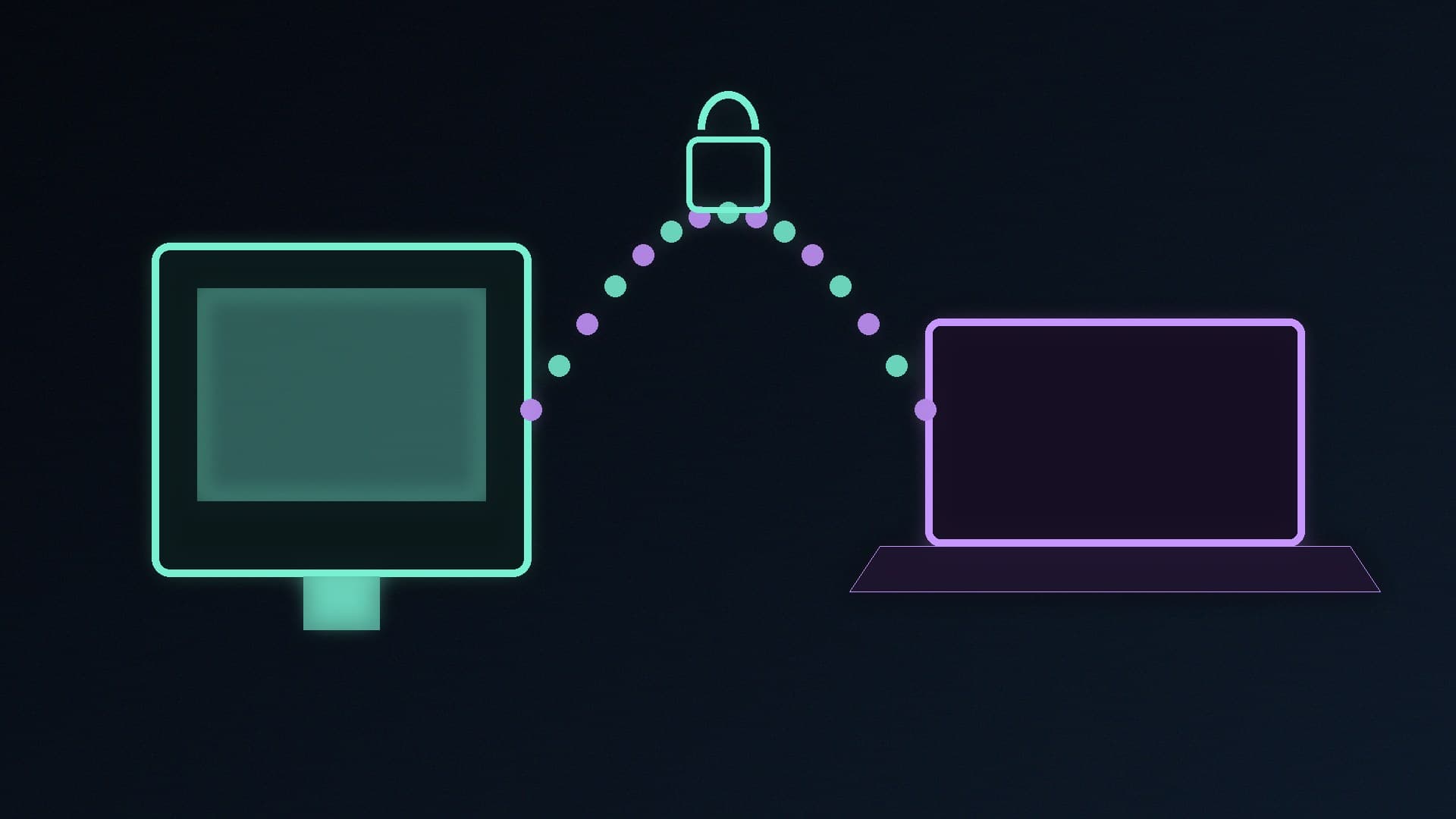
It runs over LM Link, LM Studio's end-to-end encrypted connection between your own devices, which it built in collaboration with Tailscale. LM Link was already used to load large models on your most powerful machine and use them from your other devices; now agent projects and sessions travel over the same link.

LM Studio highlights three uses:

  • Cross-platform development: have the agent build and test on a Windows or Linux machine while you work on a Mac.

  • Long-running tasks: hand off work that takes hours, close your laptop, and let the agent carry on elsewhere.

  • Dedicated machines: give heavy agent work its own computer rather than slowing down the one you're using.

Why it matters for PC builders

For many people the most capable local AI machine in the house is a gaming desktop with a big graphics card, while day-to-day work happens on a laptop. This feature fits that split: the desktop with the GPU and the VRAM does the work, and you check in from elsewhere. It doesn't change how much VRAM you need to run a given model locally; our guide to the best GPU for local LLMs covers that.

How to set it up

According to LM Studio, the steps are:

  1. Install Bionic on the machine you want to control. On machines without a display, use llmster, LM Studio's headless daemon.

  2. On that machine, click the Remote control button at the top of the sidebar and turn on Allow remote agent control.

  3. On the device you work from, go to Settings > Devices > Remote Machines and create your device network if you haven't already.

  4. Add your machines. They then appear under Remote machines in the sidebar, where you can open their projects and chats or start a new project on them.

You can also hand work to another machine from a session you're already in by typing @ and picking a device. Each machine decides whether your other devices can control its agent sessions.

Things to bear in mind

An agent that can run commands on a machine is powerful, so only enable remote control on computers you own and trust, and leave it off on machines where you don't need it. If you'd rather share a model than a whole agent, LM Studio's local server is still an option; see our guide to using the LM Studio server, or sharing Ollama on your local network if you use Ollama. For a wider look at the apps, see Ollama vs LM Studio.

Our verdict

LM Studio's Agent Remote Control, announced on 16 November 2026, lets you run its Bionic agent on one machine and control it from your other devices over the encrypted LM Link connection built with Tailscale. For PC owners, that means a GPU-equipped desktop can do long-running agent work while you drive it from a laptop. Enable it only on machines you trust. Forge PC hasn't tested this feature yet.

The bottom line

LM Studio's Agent Remote Control, announced on 16 November 2026, lets you run its Bionic agent on one machine and control it from your other devices over the encrypted LM Link connection built with Tailscale. For PC owners, that means a GPU-equipped desktop can do long-running agent work while you drive it from a laptop. Enable it only on machines you trust. Forge PC hasn't tested this feature yet.

Sources

  1. 01LM Studio, Introducing Agent Remote Control (16 November 2026)
  2. 02LM Studio, Blog index (Bionic introduced 16 July 2026)

About the author

Forge PC Staff

Editorial team

The shared byline for articles researched, written and edited by the Forge PC editorial team. How we source, check and correct our work is set out in our editorial policy.

More from Forge PC Staff

Read next

How to Enable AMD Fluid Motion Frames (AFMF 2.1) on a Radeon Graphics Card

How-To

How to Enable AMD Fluid Motion Frames (AFMF 2.1) on a Radeon Graphics Card

To enable AMD Fluid Motion Frames, install Adrenalin 25.3.1 or newer, then select the HYPR-RX profile (RX 7000 and newer) or turn on AMD Fluid Motion Frames under Gaming > Graphics, globally or per game. AFMF 2.1 works on RX 6000 cards and newer in DirectX 11, DirectX 12, Vulkan and OpenGL games, with VSync off; RX 6000 cards need exclusive full screen.

Forge PC Staff2 min

How to Use System Restore in Windows 11: Turn It On, Create a Restore Point and Roll Back

How-To

How to Use System Restore in Windows 11: Turn It On, Create a Restore Point and Roll Back

Microsoft says System Protection isn't on by default. Search for Create a restore point, select your C: drive, choose Configure and turn it on, then create a restore point before installing drivers or tools. To roll back, run rstrui.exe, or use Troubleshoot > Advanced options > System Restore in Windows RE. Personal files aren't affected, but it isn't a backup.

Forge PC Staff3 min

How to Use Live Captions and Translation in Windows 11

How-To

How to Use Live Captions and Translation in Windows 11

Press Windows + Ctrl + L to turn on live captions in Windows 11 22H2 or later, download the language files, then dock or float the captions and pick a style. Captions are generated on the device and work offline. On a Copilot+ PC with 24H2 or later, live captions can translate from over 40 languages into English and 27 into Chinese (Simplified).

Forge PC Staff3 min

How to Manage Ollama Models: List, Remove and Move Them to Another Drive

How-To

How to Manage Ollama Models: List, Remove and Move Them to Another Drive

Run ollama ls to list your models, ollama ps to see what's loaded, ollama stop to unload one and ollama rm to delete it. On Windows, models are stored in C:\Users\%username%\.ollama\models; to move them, quit Ollama, set an OLLAMA_MODELS user environment variable to a folder on a bigger drive and restart Ollama.

Forge PC Staff3 min

