It contains no accuracy figures of our own. It's based on Microsoft's PowerToys documentation on Microsoft Learn and Microsoft Support's Snipping Tool page, checked on 26 November 2026.
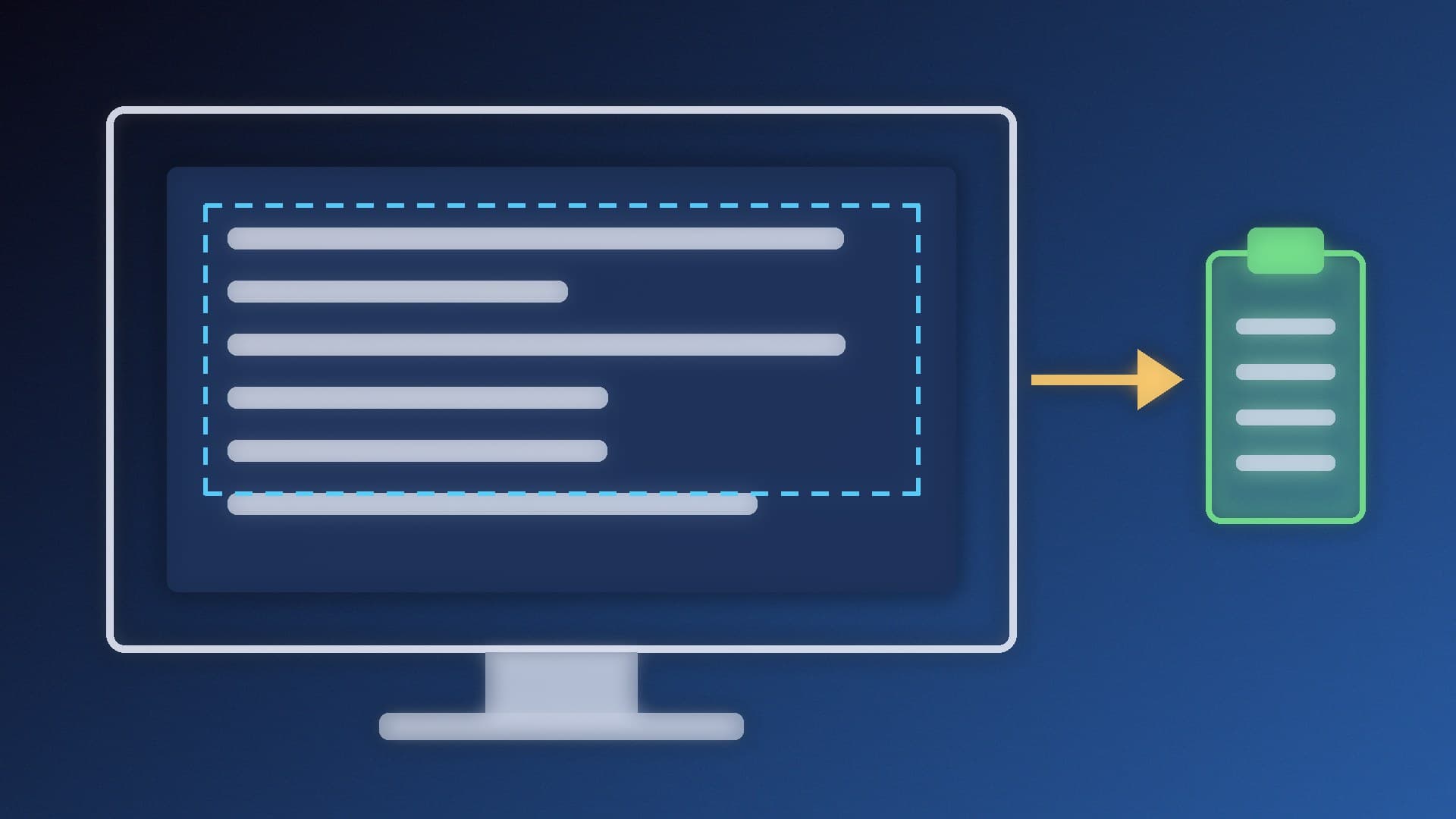
Ever needed the text from an error dialog, a screenshot in a forum post, a paused YouTube tutorial or a game launcher that won't let you select anything? Microsoft PowerToys includes a small utility called Text Extractor that does exactly that. Microsoft describes it as an OCR (optical character recognition) tool that lets you copy text from anywhere on your Windows screen, including inside images or videos. Microsoft says its code is based on Joe Finney's Text Grab app.
If you haven't used PowerToys before, our guide to Microsoft PowerToys covers the wider toolkit.
What you need
Windows 11, or Windows 10 version 2004 (build 19041) or newer, on a 64-bit x64 or Arm64 processor. These are Microsoft's requirements for PowerToys itself.
PowerToys installed. Microsoft recommends installing it from GitHub or the Microsoft Store. You can also use WinGet: winget install --id Microsoft.PowerToys --source winget
An OCR language pack for the language you want to read. Text Extractor can only recognise languages whose OCR pack is installed.
Open PowerToys Settings, select Text Extractor and make sure it's enabled. The settings page has two options:
By default, Text Extractor uses the language that matches your Windows system language under Keyboard settings.
Step 2: Capture text
Get the text you want on screen. It can be in an app, an image or a paused video.
Press Win + Shift + T. An overlay appears over the screen.
Click and hold the primary mouse button, then drag a box around the text.
Let go. Text Extractor recognises the text in that area, copies it to your clipboard and closes capture mode straight away.
Paste it wherever you need it with Ctrl + V.
While you're dragging, hold Shift to move the capture box instead of resizing it, then let go of Shift to go back to resizing. Press Esc at any time to cancel.
Microsoft warns that the output may not be perfect, so always give it a quick proofread. That matters most for things like product keys, serial numbers and command lines, where a single wrong character breaks things. If you copy text often, clipboard history (Win + V) keeps your recent captures to hand.
Step 3: Add OCR languages if you need them
To see which OCR languages Windows can use right now, run this in Windows PowerShell. Microsoft specifically says not to use PowerShell 7 here, because these aren't .NET Core libraries.
[Windows.Media.Ocr.OcrEngine, Windows.Foundation, ContentType = WindowsRuntime]
[Windows.Media.Ocr.OcrEngine]::AvailableRecognizerLanguages
To list every OCR pack and whether it's installed, open PowerShell as an administrator and run:
Get-WindowsCapability -Online | Where-Object { $_.Name -Like 'Language.OCR*' }
Packs show up with names like Language.OCR~~~en-GB~0.0.1.0. "NotPresent" means you need to install that pack first. If a language isn't in the list at all, OCR doesn't support it. Microsoft's example installs the US English pack; for UK English, swap en-US for en-GB:
$Capability = Get-WindowsCapability -Online | Where-Object { $_.Name -Like 'Language.OCR*en-GB*' }
$Capability | Add-WindowsCapability -Online
Microsoft notes that installing a language pack can take several minutes. Swap Add-WindowsCapability for Remove-WindowsCapability to remove one.
Troubleshooting: "No OCR languages are installed"
You'll see this message if no recognition languages are available. If the right OCR pack is installed but still isn't picked up, and Windows is installed on a drive other than C:, Microsoft's fix is to copy the X:\Windows\OCR folder (where X: is your system drive) to C:\Windows\OCR.
Text Extractor is built for one job: grabbing text. For screenshots, Microsoft recommends using the Snipping Tool instead. It also has its own Text actions button for pulling text out of a snip. For a wider look at OCR apps, including local AI options, see our pick of the best free OCR software.
Our verdict
PowerToys Text Extractor is one of the most useful free extras you can add to a Windows PC. Press Win + Shift + T, drag a box, and the text is on your clipboard, even from images and videos. Install the OCR pack for each language you need, check the result before you rely on it, and use the Snipping Tool when you actually want a screenshot.