Logitech G HUB is the free app that configures Logitech G mice, keyboards, headsets, racing wheels and webcams. It's capable, but it hides a lot behind small icons, and a couple of its defaults catch people out, such as settings that seem to reset when a game launches. This guide walks through the parts most PC gamers actually use: installing it, setting DPI steps, remapping buttons and keys, lighting, macros and profiles, and fixing the most common problems. It's based on Logitech's own G HUB support guide and product page.
Before you start
Supported systems. Logitech's support guide lists Windows 10 (build 1809 or later) and Windows 11, including Arm64, plus macOS 14 Sonoma and later.
Internet access. You need it to install G HUB, update firmware and download community presets. Logitech says DPI steps, button assignments, macros and lighting work offline once you're set up.
Coming from Logitech Gaming Software (LGS)? You don't have to uninstall LGS 8.98 or later first; Logitech says G HUB can import your existing profiles, macros and settings during setup. LGS itself is legacy software: Logitech's support site says G HUB has replaced it for all new devices since 2019, and that LGS installation files, download links and support documents were due to be removed from its website from 31 October 2026.
Step 1: Install G HUB and update firmware
Download G HUB from Logitech G's website, install it and plug in your device. Wireless mice and keyboards should be connected through their LIGHTSPEED receiver (or by cable). Your gear appears on the Home screen.
Check for firmware updates first. Logitech's instructions are to select the device on the Home screen, click the Device Settings (gear) icon and, under Firmware Version, click Update if one is offered, without unplugging the device until it finishes.
G HUB also includes a Device Pairing Tool (under Support in the global settings) for re-pairing LIGHTSPEED devices or, on compatible models, connecting a mouse and keyboard to one receiver; Logitech notes that not every LIGHTSPEED product supports this 2:1 pairing.
Step 2: Set your mouse DPI steps
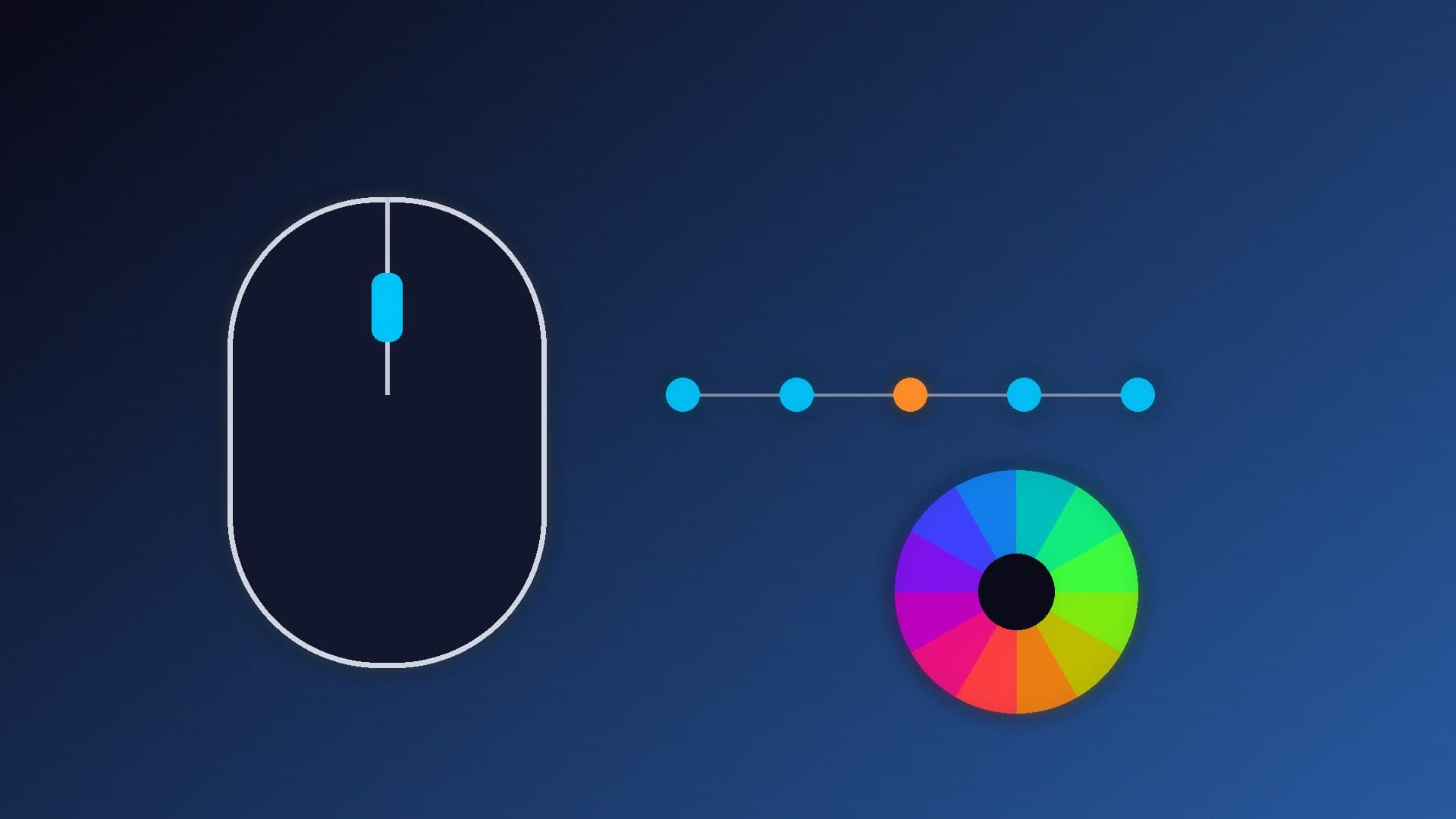
Select your mouse and open the Sensitivity (DPI) tab. On the PRO X SUPERLIGHT 2 and newer mice, Logitech says you get up to five adjustable DPI levels per profile:
Add a speed by clicking on the DPI slider track.
Remove a speed by dragging its dot down off the slider.
The highlighted speed is the active one; the orange dot marks your DPI Shift (sniper) setting, which can't be removed.
Mice with Logitech's HERO 2 sensor also have an Advanced mode on this page, with separate X and Y-axis DPI, a sensor calibration routine that tries to match the feel of your previous mouse, and a choice of low, medium or high lift-off distance.
Turn off Windows' Enhance pointer precision setting so your DPI changes behave predictably; Logitech recommends this if sensitivity feels inconsistent when switching wireless report rates. Our guides to turning off mouse acceleration in Windows 11 and changing mouse DPI and sensitivity go into more detail.
For a mouse, open the Assignments tab. Choose Commands, Keys, Actions, Macros or System from the left sidebar and drag an entry onto a button's marker on the mouse diagram. To undo a change, click the button's label and pick Use Default, or Disable to turn the button off completely.
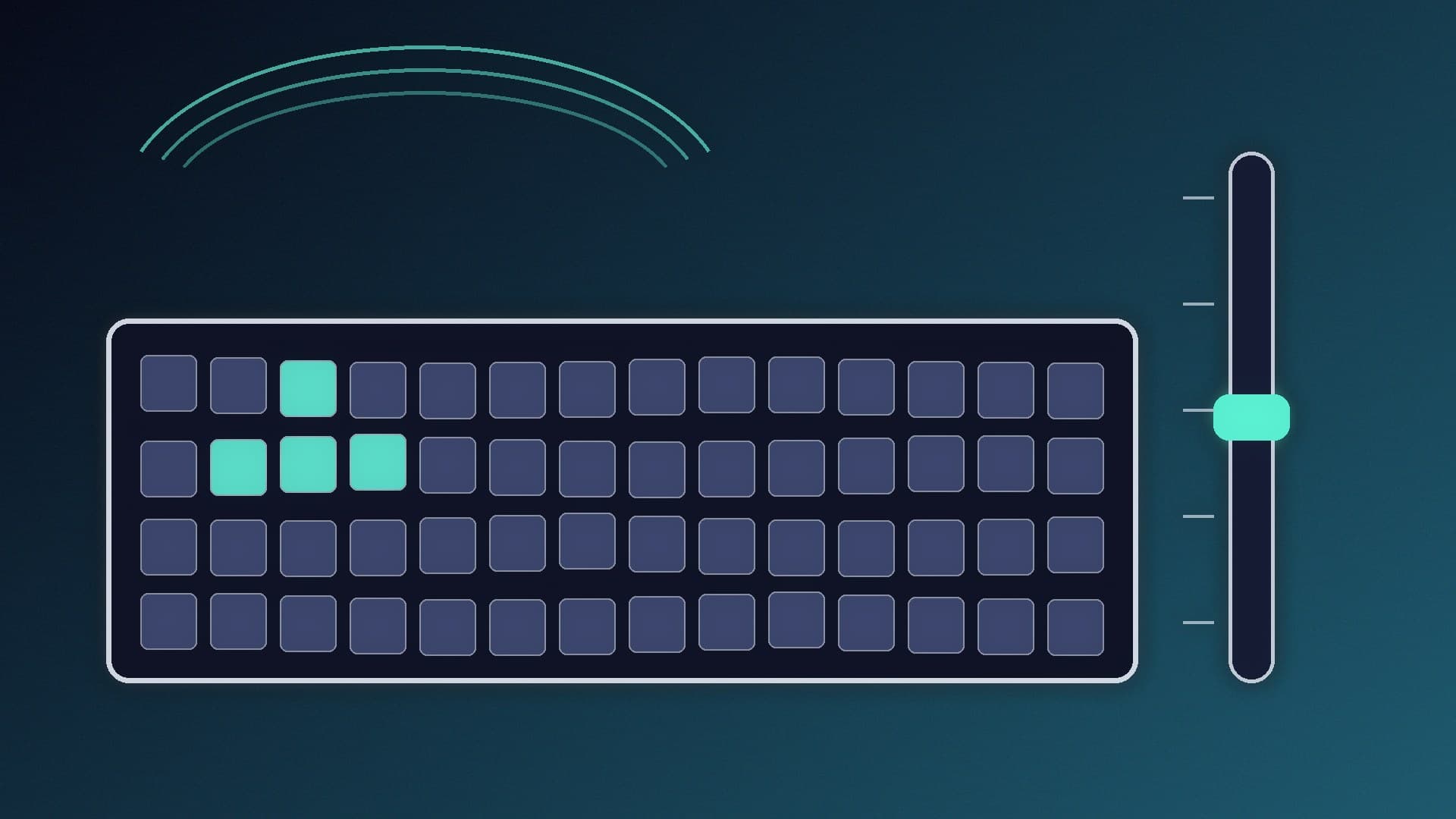
Newer Logitech G keyboards, such as the PRO X 60 and G515, use KEYCONTROL instead: select a key on the layout and assign primary actions, a secondary G-Shift layer or modifier triggers. Logitech says each key can hold up to 15 actions. On analogue-switch keyboards such as the PRO X TKL RAPID, a separate Switches tab sets per-key actuation points (0.1 mm to 4.0 mm) and Rapid Trigger. Keyboards with a physical Game Mode button also get a Game Mode tab for choosing which keys, such as the Windows key, are disabled while it's on.
Step 4: Set up lighting
In the LIGHTSYNC tab, click the colour wheel, set the brightness and press + to save a colour swatch. You can also download animated effects shared by other users from the Home page.
If your lighting won't change, check Windows. Logitech says all LIGHTSYNC devices support Windows 11 Dynamic Lighting, and when it's switched on, Windows takes over the LEDs and G HUB's lighting controls are locked out. Turn it off under Settings > Personalisation > Dynamic Lighting if you want G HUB in charge; our guide to using Dynamic Lighting in Windows 11 explains the trade-off. Logitech also notes Dynamic Lighting doesn't work over standard Bluetooth.
Step 5: Create macros
Open Assignments (or KEYCONTROL), select Macros and click Create New Macro. Name it, then choose how it runs:
No Repeat: plays once per press.
Repeat While Holding: loops until you let go.
Toggle: starts on one press, stops on the next.
Sequence: separate actions on press, while holding and on release.
Click Start Now, record your keystrokes (or add text, delays or system actions), stop recording, save, then drag the macro onto a button or key. If a fast macro is ignored in a game, Logitech suggests adding a 25-50 ms delay between key-down and key-up events.
Step 6: Understand profiles (and why settings "reset")
G HUB can switch profiles automatically when a game starts. Logitech's FAQ explains that the profile system is off by default, but if you're using it and launch a game whose automatic profile has no settings configured, your settings revert to default, because that's the starting point for new profiles. The fixes, all from Logitech's guide:
Set up the game's profile with the settings you want, or drag an existing profile card onto that game in Games & Applications.
Lock one profile everywhere: go to Settings and choose a Persistent Profile.
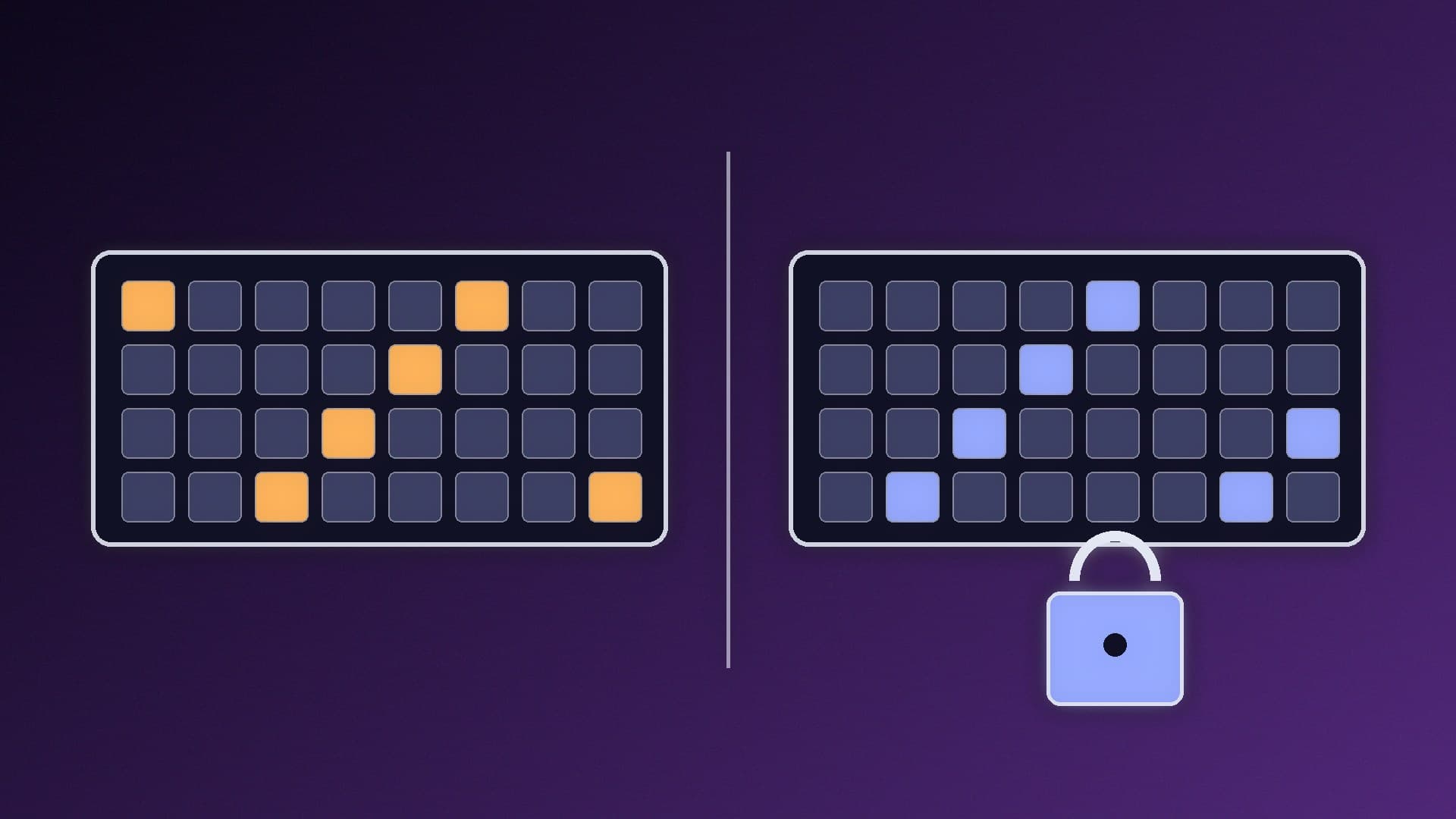
Lock just one module: click the lock icon in the Assignments or LIGHTSYNC tab to keep those settings the same across all profiles.
Stop one app switching profiles: in Games & Applications, open the app's settings and set Profile Switching to Disabled.
If you want your settings to work on another PC without G HUB, use On-Board Memory Mode; our guide to saving settings to a Logitech G mouse's on-board memory covers it step by step.
Headsets and microphones
With a supported headset connected, G HUB adds extra tabs. Acoustics has the equaliser, bass and treble boost, sidetone and DTS Headphone:X 2.0 surround, while the Microphone tab sets input gain and Blue VO!CE filters such as noise reduction, a gate, compressor and de-esser, with a loop-back test.
Troubleshooting
Macros work on the desktop but not in a game. Logitech says G HUB and the game must run at the same Windows privilege level; if the game runs as administrator, run G HUB as administrator too. Some anti-cheat systems block software-injected macros regardless.
G HUB stuck on the spinning logo. Quit it from the system tray, end LGHUB Agent and LGHUB in Task Manager, then restart the LGHUBUpdaterService on the Services tab and relaunch.
Installer says it can't load basic components. Logitech says this points to missing or corrupted Microsoft Visual C++ runtimes: reinstall (and repair) the x64 Visual C++ Redistributable, then run a fresh G HUB installer.
G HUB closes as soon as it opens. Logitech warns that third-party RGB tools such as SignalRGB, with their option to close conflicting processes, can shut it down. Our OpenRGB vs SignalRGB comparison explains how those tools work.
Which Logitech G gear works with it?
G HUB supports current Logitech G gaming mice such as the Logitech G305 Lightspeed, Logitech G309 Lightspeed, Logitech G502 X Lightspeed and Logitech G Pro X Superlight 2, along with Logitech G keyboards and headsets. If you're choosing between ecosystems, see Logitech G HUB vs Razer Synapse and our best Logitech G gaming mouse guide.