Everything below comes from the project's official website, its GitHub README and its latest release notes, all checked on 25 November 2026.
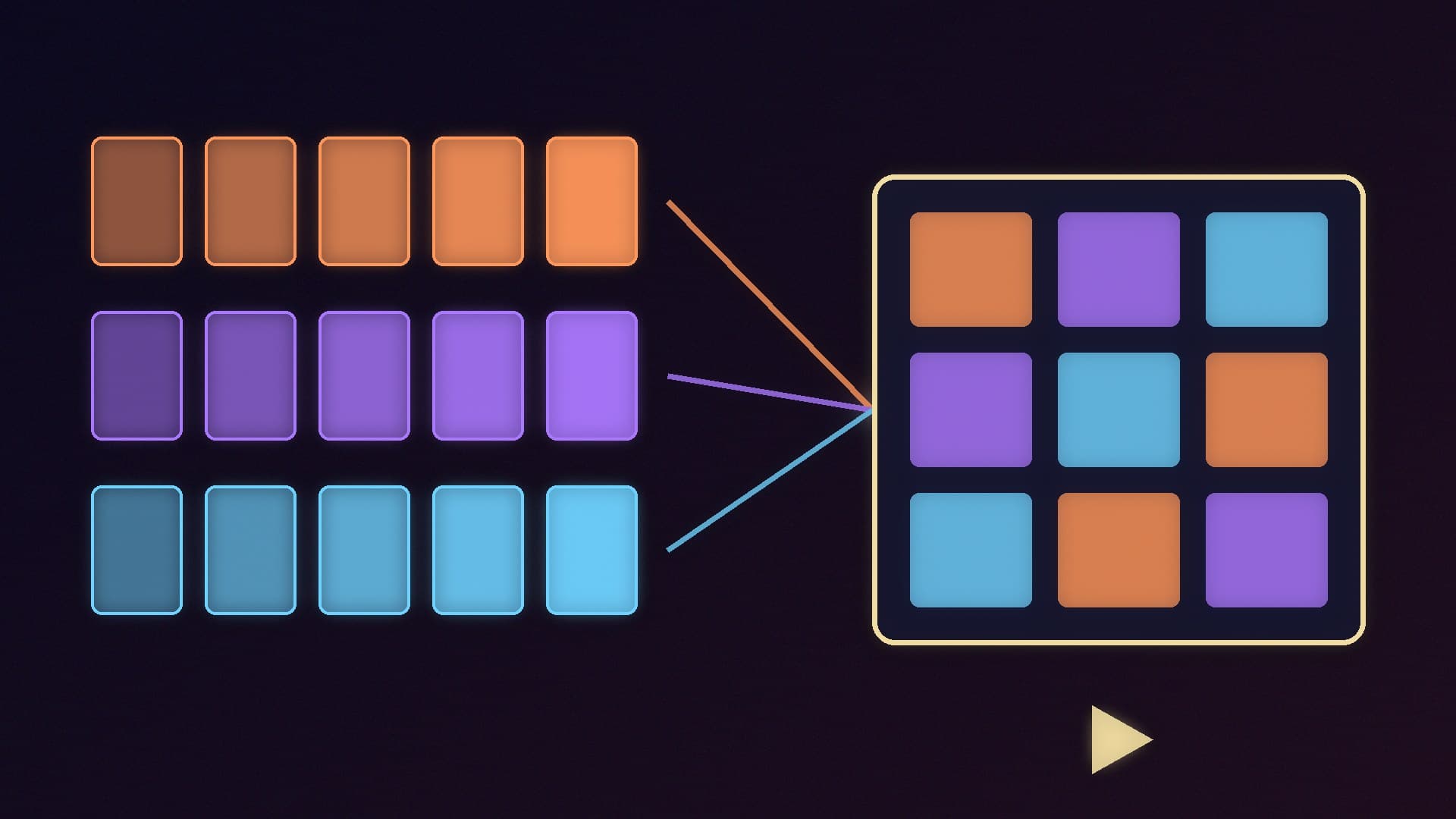
If you've picked up games from Epic's weekly giveaways, bought DRM-free titles on GOG and claimed a few through Amazon Prime, you probably have three launchers fighting over your system tray. Heroic Games Launcher is a free, open-source alternative that brings all three stores into one app.
What Heroic is
Heroic's README describes it as an open-source game launcher for Linux, Windows and macOS. It handles each store with a separate open-source back end:
Epic Games Store games through Legendary
GOG games through Heroic's own gogdl implementation
Amazon Games through Nile
The project's website says it's GPLv3 licensed, has no ads and no paid tier, and that its analytics are anonymous and off by default. It's built by volunteers and funded by donations through Patreon, Ko-fi and GitHub Sponsors.
It's not a Steam replacement: Steam isn't one of the supported stores. If you mainly want one window for everything, including Steam, our Playnite vs GOG Galaxy comparison covers library managers that link to more stores. If you're still deciding where to buy games in the first place, see Steam vs Epic Games Store.
What it can do
The feature list in the README includes:
Log in with an existing Epic Games, GOG or Amazon account
Install, uninstall, update, repair and move games
Import a game that's already installed
Play Epic games online
Sync installed games with an existing Epic Games Store installation
Sync saves with the cloud
Browse the Epic, GOG and Amazon stores from inside Heroic
A download queue
Add games and applications from outside those three stores
Your own categories to organise the collection
Custom themes
The website adds a few more: a game page showing the description, publisher, download and install size and time played; custom cover art pulled from SteamGridDB; and a full-screen, controller-friendly Console Mode designed for a TV or the Steam Deck. Much of the rest of the site is about Wine and Proton, which matter on Linux and macOS only; on Windows, games simply run as normal Windows games.
Step 1: Install Heroic on Windows 11
The README lists Windows 10 and 11 as supported. There are three official routes:
WinGet. Open Terminal and run winget install Heroic. The README notes WinGet is installed by default on Windows 11 and modern versions of Windows 10. If you've not used it before, our guide to installing apps with WinGet explains the basics, and UniGetUI gives it a graphical front end.
Installer. Download the Setup file from the latest release on GitHub or from heroicgameslauncher.com. The README says the Setup creates shortcuts on your desktop and in the Start menu.
Portable. The same release page offers a Portable executable that runs without installing.
The latest release at the time of writing was v2.22.4, published on 15 October 2026 as a small hotfix for the GOG login and a UMU issue. It includes Setup and Portable builds for both x64 and ARM64 Windows, so Windows on Arm PCs have a native version too. The website lists SignPath as a sponsor providing free signing of Windows binaries.
Download Heroic only from heroicgameslauncher.com, its GitHub releases page or WinGet. You'll be signing in to your store accounts through it, so avoid unofficial download sites.
Step 2: Log in to your stores
Heroic lets you log in with an existing Epic Games, GOG or Amazon account. You only need to connect the stores you actually use, and you don't need a new account for Heroic itself. Once you're signed in, the games you own on that store appear in your Heroic library.
Step 3: Install a game, or import one you already have
To install a game, open it from the library and start the install, choosing a drive with plenty of free space for big games. Heroic's download queue lets you line up several installs from different stores; the website says you can watch download and disk speeds, pause or resume, and see what's finished.
If a game is already on your drive, don't download it again:
Import. Heroic can import a game that's already installed, so it doesn't need to download it again.
Sync with the Epic launcher. If you've installed games through the official Epic Games Launcher, Heroic can sync with that installation so it knows what's already there.
Heroic can also move an installed game to another drive, and repair one whose files have gone wrong, which is handy if you're upgrading to a bigger SSD.
Step 4: Turn on cloud saves
Syncing saves with the cloud is one of Heroic's listed features. Before relying on it, especially for a game you've already played through the official launcher, keep a manual copy of any save folders you care about, so you have a fallback if anything goes wrong the first time.
Step 5: Organise your library
A few touches make a big mixed library easier to live with:
Categories. Create your own, such as "Playing", "Backlog" or "Co-op".
Custom artwork. Rename games and pick cover and square art from SteamGridDB, which helps imported and non-store titles look consistent.
Non-store games. Add games and applications from elsewhere so they launch from the same place.
Themes. The website highlights custom themes, including the Dracula theme.
Console Mode. For a living-room PC hooked up to a TV, switch to the full-screen controller interface.
Things to know before you switch
Online play and anti-cheat. The README says you can play Epic games online, but notes that anti-cheat support on macOS and Linux depends on the game. If an online game misbehaves on Windows, try it through the official launcher to rule Heroic out.
It's volunteer software. Updates arrive when the community ships them. If a store changes its login, as the v2.22.4 GOG fix shows, there can be a short wait for a fix.
Our verdict
Heroic Games Launcher is the easiest way to get Epic, GOG and Amazon games into one free, ad-free, open-source app on Windows 11. Install it from WinGet, GitHub or heroicgameslauncher.com, log in to the stores you use, import anything already on your drive rather than downloading it again, and use categories and custom art to tame a big library. It doesn't cover Steam, and it's worth keeping the official launchers handy in case an online game misbehaves, but for everyday launching of your free Epic games and GOG collection, Heroic is well worth a try.