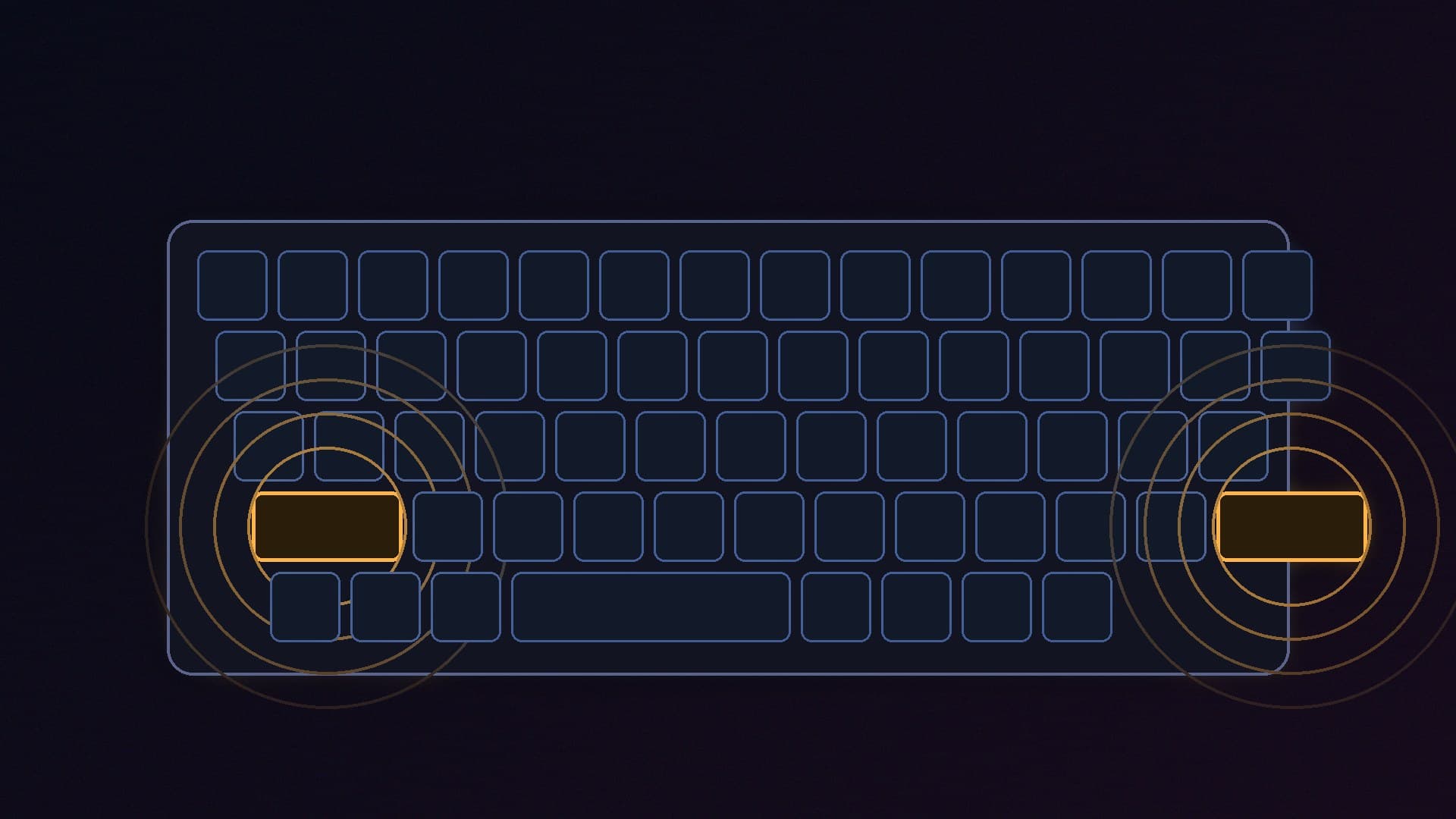
You're crouching or sprinting in a game, you hit Shift a few times in quick succession, and Windows interrupts you with a Sticky Keys prompt. Or your keyboard suddenly feels sluggish, ignoring quick taps and repeated presses. Both are usually Windows accessibility features doing exactly what they were designed to do, just not what you want right now. This guide covers how to turn them off in Windows 11.
What Sticky Keys, Filter Keys and Toggle Keys do
These are useful features for people who find some key presses difficult, so it's worth knowing what each one does before you switch it off:
Feature | What it does (Microsoft) | Shortcut that turns it on or off |
|---|
Sticky Keys | Lets you press multi-key commands, such as Ctrl+S, one key at a time | Press Shift five times |
Filter Keys | Sets the keyboard's sensitivity so it can ignore brief or repeated keystrokes | Hold the right Shift key for eight seconds |
Toggle Keys | Plays a sound when you press Caps Lock, Num Lock or Scroll Lock | Hold Num Lock for five seconds |
Those shortcuts explain most "my keyboard went weird" moments. Tapping Shift repeatedly in a game can trigger the Sticky Keys shortcut, and holding the right Shift key down for a long stretch can trigger the Filter Keys one. If your keys suddenly stop responding to quick taps, Filter Keys is the first thing to check.
How to turn off Sticky Keys in Windows 11
Press Windows key + U to open Accessibility settings. You can also go to Start > Settings > Accessibility.
Select Keyboard.
Turn off the Sticky keys switch.
If you only want to stop the pop-up appearing in games, select the Sticky keys entry itself (rather than the switch) to open its options and look for the setting that controls the keyboard shortcut. Option names can vary slightly between Windows 11 updates, so go by what your PC shows.
How to turn off Filter Keys in Windows 11
Press Windows key + U, or go to Start > Settings > Accessibility.
Select Keyboard.
Turn off the Filter keys switch.
As with Sticky Keys, selecting the Filter keys entry opens its options, including its shortcut setting. If your keyboard has felt slow to register presses, test it in a text box after turning Filter Keys off. Fast, repeated letters should now appear normally.
Turn off Toggle Keys too (optional)
Toggle Keys doesn't block any input, but its beep every time you press Caps Lock or Num Lock can be annoying. It's on the same page: Settings > Accessibility > Keyboard, then turn off the Toggle keys switch.
The quick shortcut method
If you just triggered one of these by accident, the same shortcut that turned it on also turns it off, according to Microsoft's list of accessibility keyboard shortcuts:
Sticky Keys: press Shift five times.
Filter Keys: hold right Shift for eight seconds.
Toggle Keys: hold Num Lock for five seconds.
Windows may show a confirmation prompt when you use these. Read it before you click, because it can be easy to switch a feature on rather than off.
Still having keyboard problems?
If Sticky Keys and Filter Keys are both off and keys still misbehave, the cause is probably elsewhere:
Our verdict
Sticky Keys and Filter Keys are helpful accessibility features, but in games their shortcuts are easy to trigger by accident: five Shift presses for Sticky Keys and eight seconds on right Shift for Filter Keys. Turn them off under Settings > Accessibility > Keyboard (Windows key + U is the fastest way there), or use the same shortcut again to switch them off. If they're off and keys still misbehave, look at your keyboard's connection, firmware or the hardware itself.