A key that doesn't register, types twice or only works sometimes is annoying on any keyboard, and it's even worse on a new one you might want to return. Before you blame the hardware, it's worth testing every key methodically and ruling out Windows settings that can make a healthy keyboard look faulty. This guide uses free tools and Microsoft's own accessibility documentation, checked on 27 November 2026.
What you'll need
The keyboard you want to test, connected directly to the PC (not via a hub or KVM switch for the first test).
A web browser for QMK Configurator's test mode.
Optionally, VIA if your keyboard supports it.
About 10 minutes.
Step 1: Rule out Windows settings first
Some Windows accessibility features change how key presses are handled, and they can be switched on by accident with a keyboard shortcut. Microsoft's list of accessibility shortcuts includes:
Filter Keys: turned on and off by holding Right Shift for eight seconds. Microsoft says Filter Keys sets the sensitivity of the keyboard so it can ignore brief or repeated keystrokes, which can make quick taps appear not to register.
Sticky Keys: turned on or off by pressing Shift five times. It lets you press shortcut keys one at a time, which can make modifier keys such as Shift and Ctrl behave unexpectedly.
To check, open Settings > Accessibility > Keyboard and make sure Sticky keys and Filter keys are both off unless you deliberately use them. If a key types the wrong character rather than nothing at all, the cause is more likely a keyboard layout or language setting; our guide on fixing a keyboard typing the wrong characters covers that.
Step 2: Test every key with QMK Configurator's test mode
The QMK project's documentation points users to QMK Configurator's test mode to check a keyboard, and notes that it works even if the keyboard doesn't run QMK firmware. It runs in a browser, so there's nothing to install.
Open the QMK Configurator test page at config.qmk.fm and select the test mode.
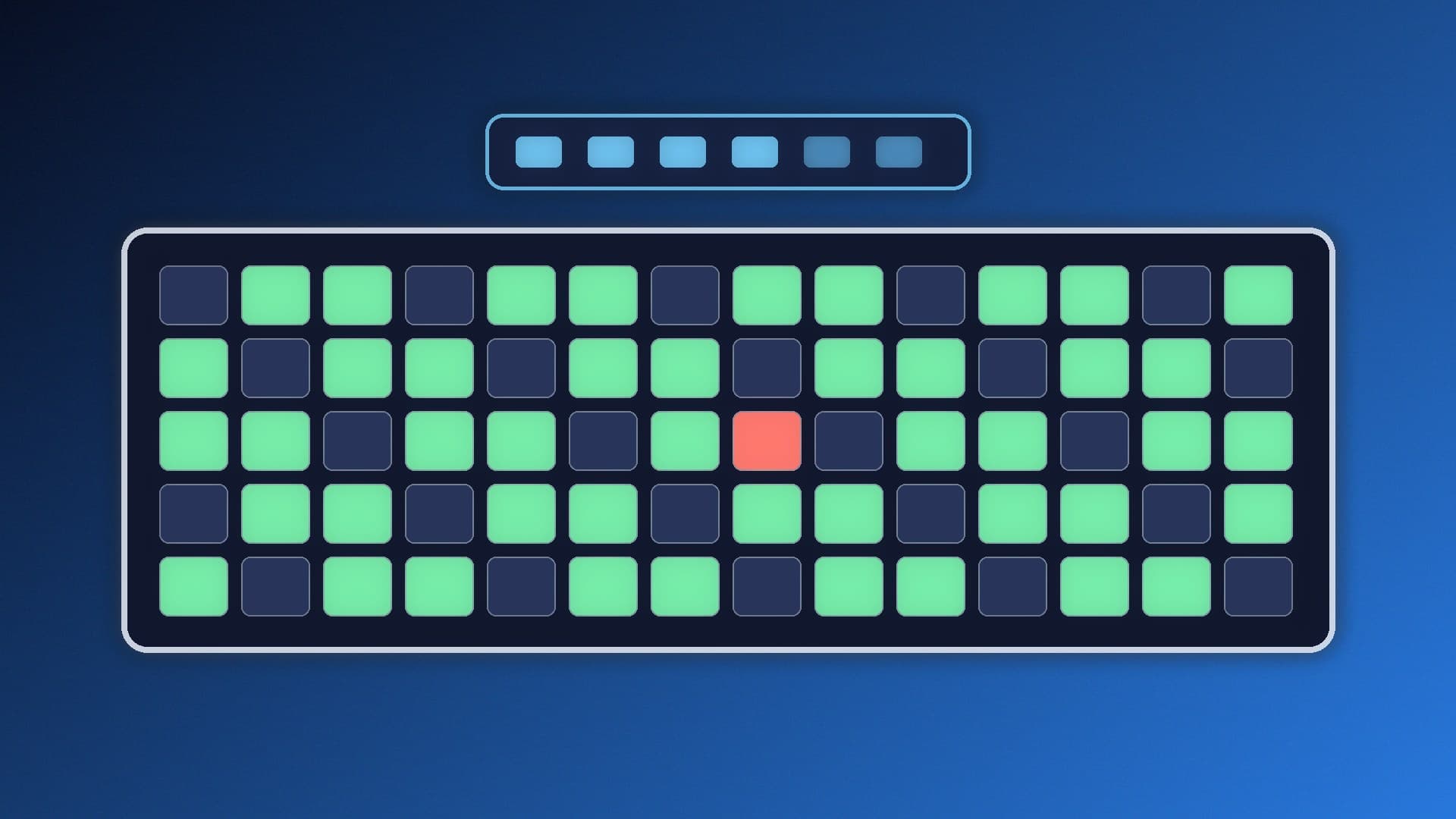
Press each key in turn, row by row, from Esc to the bottom-right arrow key. Each press should highlight the matching key on screen.
Don't forget function keys, the numeric keypad, Print Screen, Scroll Lock, Pause and both left and right versions of Shift, Ctrl, Alt and the Windows key.
Hold a few keys to check they stay down for as long as you hold them, then release.
Note any key that doesn't light up, lights up the wrong key or flickers on and off while held.
Some keys are handled by the keyboard itself rather than sent to the PC. Fn layers, media keys and lighting controls may not appear in a browser tester even when they work properly, so check those against your keyboard's manual.
Step 3: Check for double presses and chatter
A switch that registers one press as two is usually called chatter. In the tester, tap each suspect key slowly 20 or 30 times and watch whether any single press registers twice. You can also open Notepad and type each suspect key repeatedly at a normal pace; doubled characters are easy to spot in plain text.
If you find chatter, our guide to fixing keyboard chatter walks through cleaning, firmware debounce settings and switch replacement on hot-swap boards.
Step 4: Test multiple keys at once
Games often need several keys held together, for example W, A, Shift and Space. With the tester open, hold combinations you use in your games and check that every held key stays highlighted. If one key in a combination drops out or a key you aren't pressing lights up, the keyboard may have a limit on how many simultaneous presses it can handle, or there may be a fault in one area of the board. Compare the result with the rollover details in your keyboard maker's specifications before assuming it's broken.
Step 5: Use VIA if your keyboard supports it
VIA is a free keyboard configuration app that its developers say is compatible with more than 1,400 keyboards and can be added to other QMK keyboards, and that lets you configure, test and design in one place. If your keyboard is VIA-compatible, testing inside VIA shows presses against your keyboard's own layout, which can make problems easier to spot on compact layouts such as 65% or 75% boards. VIA is also where you can check that a key hasn't simply been remapped; see our guide on how to remap a keyboard with VIA.
Step 6: Keep typing with Windows' On-Screen Keyboard
Windows includes an On-Screen Keyboard (OSK) that displays a visual keyboard with all the standard keys, and Microsoft's accessibility shortcut list says you can open it with Windows + Ctrl + O. You can select keys with a mouse, so it's a handy way to keep typing, or to enter a character from a dead key, while you sort out the fault.
If a key still fails
Try another USB port and cable, plugging straight into the motherboard rather than a front-panel port or hub. For wireless boards, test in wired mode if available.
Update the firmware using the maker's own tool; see our guide on how to update keyboard firmware.
Check for remaps. Utilities such as PowerToys Keyboard Manager and AutoHotkey can change what a key does; our remapping software roundup lists the common ones.
Test on another PC. If the same key fails on a second computer, the fault is in the keyboard. Contact the retailer or manufacturer, and keep a note of which keys failed in which test.