It's based on Microsoft's official Start menu support pages, checked on 25 November 2026, with setting names cross-checked against Windows Central's guide to the redesigned Start menu. Microsoft has been updating Start in stages, so a toggle's exact wording can differ slightly depending on your Windows 11 version and whether your PC has received the newest Start design.
Out of the box, the Windows 11 Start menu is full of apps you didn't choose, suggested files and the odd app promotion. Ten minutes in Settings turns it into a fast launcher for the things you actually use. Everything below is built into Windows, with nothing to install. If you'd rather replace Start altogether with a classic-style menu, see our Open-Shell vs StartAllBack comparison.
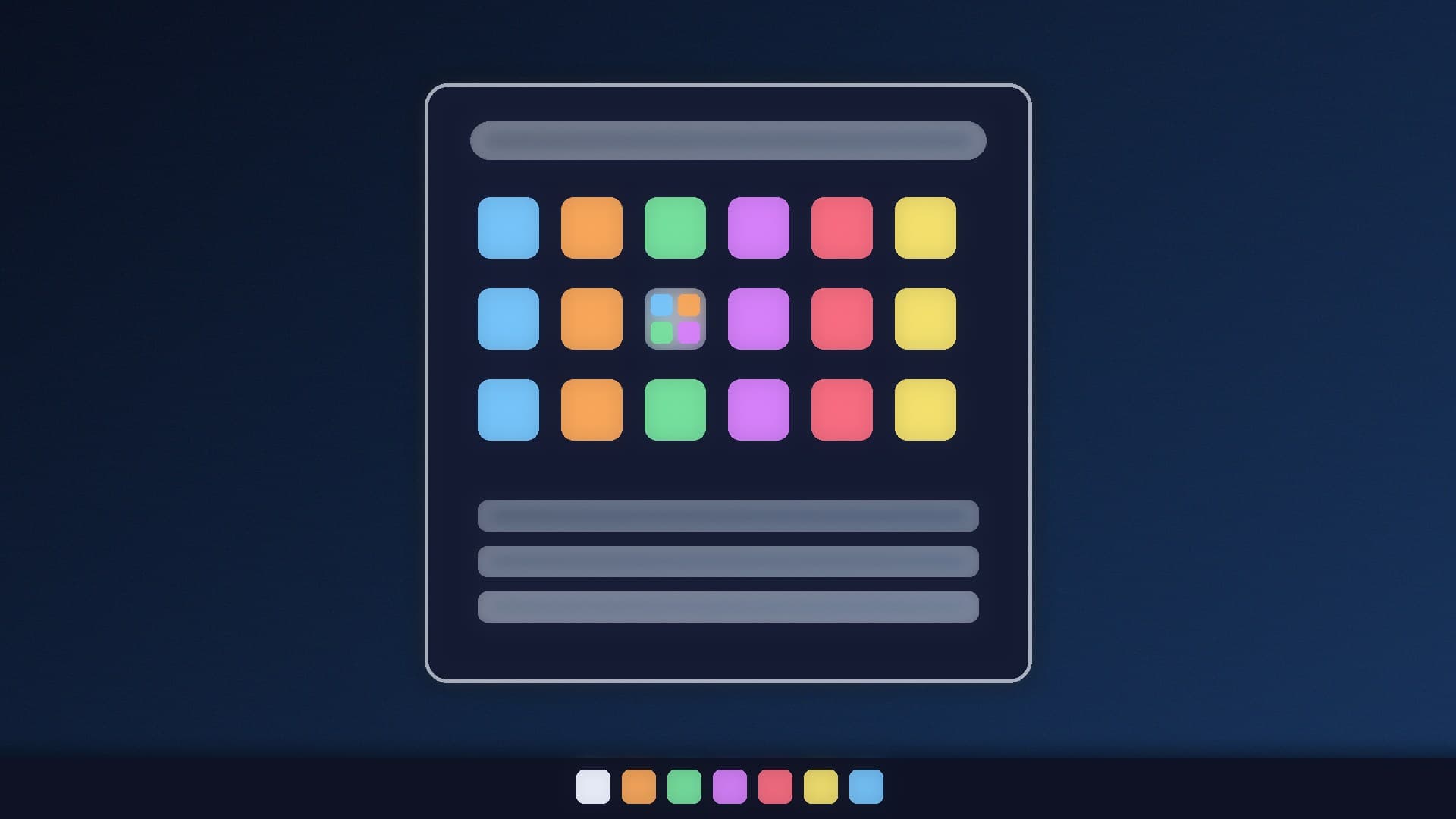
Microsoft's support page splits the current Windows 11 Start menu into six areas:
Search at the top for apps, files and settings.
Pinned apps, files, folders and websites in a grid.
Recommended: recently added and frequently used apps, plus recently opened files.
All: every installed app, viewable by category, as a grid or as a list.
Account area with your profile, optional folder shortcuts and the power button.
Mobile device companion, which shows your phone's messages, calls and notifications via Phone Link.
Step 1: Pin the apps you use and unpin the rest
Open Start, type the name of an app, right-click it and select Pin to Start.
To pin a folder, right-click it in File Explorer and select Pin to Start.
To pin a website, open it in Microsoft Edge, then select Settings and more (...) > More tools > Pin to Start.
To remove anything you don't use, right-click it in Start and select Unpin from Start.
Pre-installed apps you never open are worth unpinning, and if they're not needed at all, uninstalling them frees space too. Unpinning doesn't remove an app.
Step 2: Rearrange pins and group them into folders
Reorder pins by dragging them to a new position.
Create a folder by dragging one pin on top of another. Windows creates the folder automatically, and you can open it and rename it, for example "Games", "Creative" or "Work".
Add more apps by dragging them into the folder, and remove one by opening the folder and dragging it out.
When only one pin is left, Windows removes the folder.
Microsoft notes that the Pinned section remembers your last view: select Show all and it stays expanded next time you open Start.
Step 3: Choose how All apps is displayed
In the newer Start design, the All section can show your installed apps by Category, as a Grid or as a List. Switch views using the control at the top of the section. Start remembers your choice, so pick the one that suits you once and leave it.
Category view groups apps automatically, which can be handy if you have a lot of games launchers, creative apps and utilities installed. List view is closest to the older alphabetical Start menu.
Step 4: Trim or hide the Recommended section
The Recommended area is where Windows shows recent files, new apps and, depending on your settings, tips and app suggestions. To control it:
Go to Settings > Personalisation > Start (or right-click the bottom of the Start menu and select Start settings).
Turn off the toggles you don't want. Depending on your Windows version, these include options such as Show recently added apps, Show most used apps, Show recommended files in Start, recent files in File Explorer, and items in Jump Lists, Show websites from your browsing history and Show recommendations for tips, shortcuts, new apps, and more.
Microsoft says that if you turn off all the Recommended options, that section collapses and you won't see it. Be aware that the recent-files toggle also affects recent files in File Explorer and jump lists on the taskbar, so turning it off clears those too.
Switching off the tips and recommendations toggle is the quickest way to stop app promotions appearing in Start. For more ways to cut back on suggestions and data sharing, see our best free privacy tools for Windows 11.
Go to Settings > Personalisation > Start > Folders.
Turn on the shortcuts you want. Microsoft lists Documents, Downloads, Music, Pictures, Videos, Network and Personal folder; Windows Central notes that Settings and File Explorer are options too.
These small icons sit beside the power button and give you one-click access to folders you open every day. Downloads and Settings are the most useful for most people.
Step 6: Show or hide your phone in Start
If you've linked an Android phone or iPhone with Phone Link, the newer Start menu can show it alongside your apps. Turn this on or off in Settings > Personalisation > Start using the Show mobile device in Start toggle. Our Phone Link guide explains how to connect a phone in the first place.
Step 7: Move Start to the left
Windows 11 centres the Start button and taskbar icons by default. To move them back to the left, as in Windows 10:
Right-click the taskbar and select Taskbar settings.
Expand Taskbar behaviours.
Set Taskbar alignment to Left.
Our taskbar customisation guide covers the rest of the taskbar settings, including hiding Search, Task view and Widgets.
Use search for everything else. Press the Windows key and start typing; you don't need to pin apps you open once a month.
Keep the first page for daily apps. Put your browser, game launcher and most-used tools on the first page so they're visible without clicking Show all.
Tidy startup too. A clean Start menu won't help if dozens of apps launch at boot; see how to manage startup apps in Windows 11.
Pair Start with Snap layouts and virtual desktops. Our guides to Snap layouts and virtual desktops help keep the apps you launch organised.
Our verdict
You don't need third-party software to make the Windows 11 Start menu useful. Unpin the apps you don't use, group the rest into a few named folders, switch off the Recommended toggles you don't want (including tips and app suggestions), and add Downloads and Settings next to the power button. If you prefer the Windows 10 look, move Start to the left in Taskbar settings. If none of that is enough, a replacement such as Open-Shell or StartAllBack is the next step.