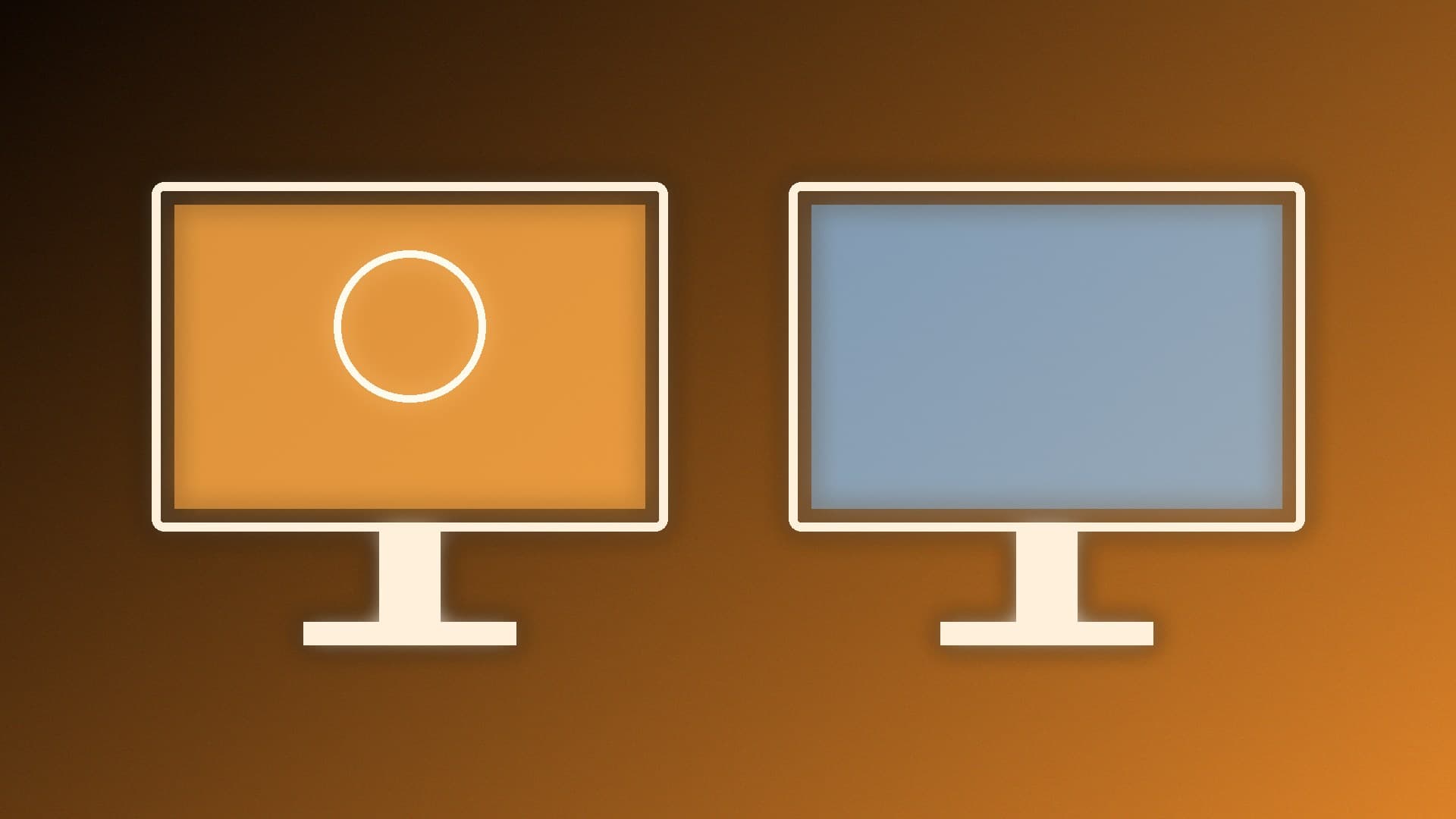
Windows 11 now gives you two different settings that change the colour of your whole screen: Night light and Screen Tint. They sound similar, but Microsoft says they solve different problems, and you can use both at the same time. This comparison is based on Microsoft's own support documentation. This comparison hasn't involved measuring either feature with a colorimeter, and how each looks will depend on your monitor.
The short version
| Night light | Screen Tint |
|---|
What it's for | Reducing blue light in the evening, which Microsoft says can make it harder to fall asleep | Softening a bright, harsh screen that leaves your eyes tired or uncomfortable, including light sensitivity |
What it does | Gradually warms the screen from white to a softer amber | Lays a single colour of your choice over the whole screen |
Where to find it | Settings > System > Display > Night light | Settings > Accessibility > Screen Tint |
Adjustments | Strength slider and a schedule (sunset to sunrise or set hours) | Six preset colours or a custom colour, plus a strength slider |
Microsoft notes that its Screen Tint guidance applies to Windows 11, and that the settings may not be available in Windows 10.
Night light: warmer colours for the evening
Night light reduces the blue light your display gives off by shifting colours towards amber. Microsoft frames it as a sleep aid: warmer colours at night are easier on your eyes and less likely to keep you awake.
To turn it on, open Settings > System > Display and switch on Night light. You can also toggle it from Quick Settings on the taskbar. Select Night light to open its settings, then:
Drag Strength to control how warm the screen becomes.
Turn on Schedule night light, then pick Sunset to sunrise or Set hours and enter your own times.
There are two catches. Microsoft says Night light isn't available with certain drivers, such as DisplayLink or Basic Display, and if the Night light switch is greyed out you may need to update your display driver. Our guide to updating drivers in Device Manager covers that.
Screen Tint: a colour overlay for comfort
Screen Tint is an accessibility setting. Rather than warming the image, it places a single colour of your choice over the whole screen to soften its intensity. Microsoft positions it for daytime use, for people who find a bright screen tiring, strained or uncomfortable, including those with light sensitivity. You'll find it under Settings > Accessibility > Screen Tint.
Microsoft's Screen Tint guide says there are six preset colours, or you can pick a custom colour from a colour picker, and a strength slider takes it from a light wash of colour up to maximum intensity. Microsoft also notes that how strong the tint looks may vary with your display hardware.
One important catch: Screen Tint and Windows' colour filters can't run together. Microsoft says turning on Screen Tint disables colour filters, and turning on colour filters disables Screen Tint, so if you rely on colour filters (for example, for colour blindness), keep Screen Tint off.
Which should you use?
Trouble winding down after evening gaming or work? Use Night light and set a schedule so it comes on automatically.
Eyes feel strained by a bright screen during the day? Try Screen Tint.
Use colour filters? Stick with Night light, as Screen Tint switches colour filters off.
Both? Microsoft says you can turn both on: Night light handles warmth for better sleep, and Screen Tint handles intensity for comfort.
Both change the colours you see, so switch them off before colour-critical work such as photo editing, and before you calibrate your monitor. If your screen simply feels too bright, it's also worth lowering the monitor's own brightness, and checking your HDR settings in Windows 11 if you use HDR.
Our verdict
Use Night light if your aim is a warmer screen in the evening, ideally on a sunset-to-sunrise schedule. Use Screen Tint if a bright screen is uncomfortable during the day. They do different jobs, so there's nothing stopping you from using both, but turn them off for colour-accurate work.