This guide follows LM Studio's official Tool Use documentation, read on 26 November 2026.
Tool calling, also called function calling, lets a local language model ask your code to do something it can't do itself, such as look up an order, check the weather or query a database. It's what lets a model take actions in agent-style apps. LM Studio supports it through its local server, using the same request format as OpenAI's Function Calling API. If you use Ollama, see our guide to tool calling in Ollama instead.
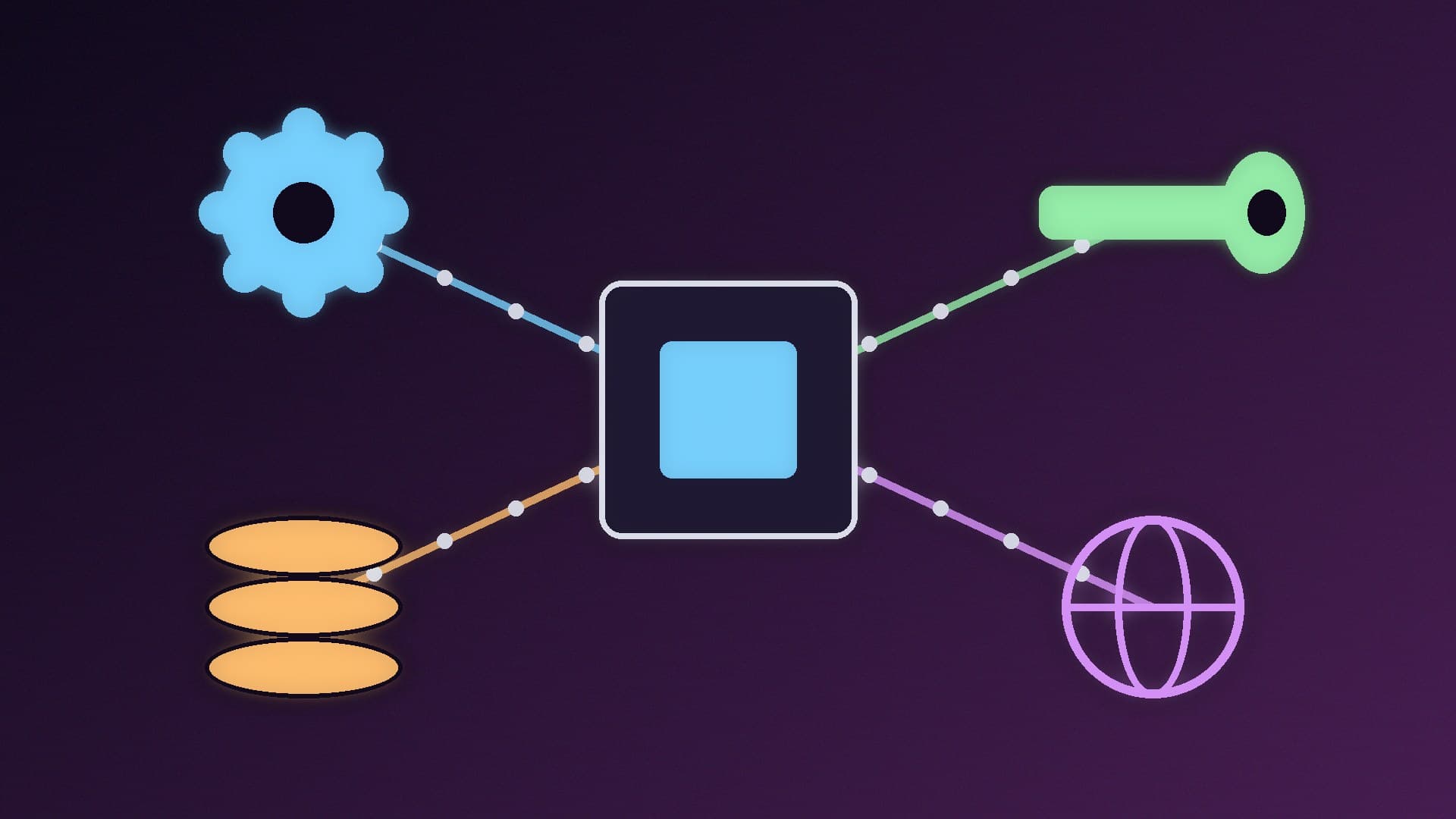
LM Studio's documentation is clear that the model never runs anything itself. The flow is:
Your code sends the model a list of tools, each described by a name, a description and the parameters it takes.
The model either answers normally or outputs text asking for one or more tools to be called.
Your code runs the requested function and adds the result to the conversation.
The model is prompted again with the result and writes its final answer.
Because your own code does the work, you stay in control of what a tool can and can't do.
Step 1: Start the server and load a model
You can turn on LM Studio's local server from the Developer tab, or run lms server start in a terminal. Load a model from the Chat or Developer tab, or with lms load. If lms isn't installed, LM Studio's docs say to run npx lmstudio install-cli. Our guide to LM Studio's server and guide to the lms CLI go into more detail.
LM Studio says all models support at least some degree of tool use, but there are two levels:
Native: the model's chat template supports tool use and LM Studio supports that model's tool-call format. These models show a hammer badge in LM Studio and, according to the docs, generally perform better. LM Studio's current list, which it says is subject to change, includes Qwen2.5-Instruct, Llama 3.1 and 3.2, and Ministral 8B.
Default: for every other model, LM Studio gives the model a custom system prompt and a default tool-call format. LM Studio says results will vary by model.
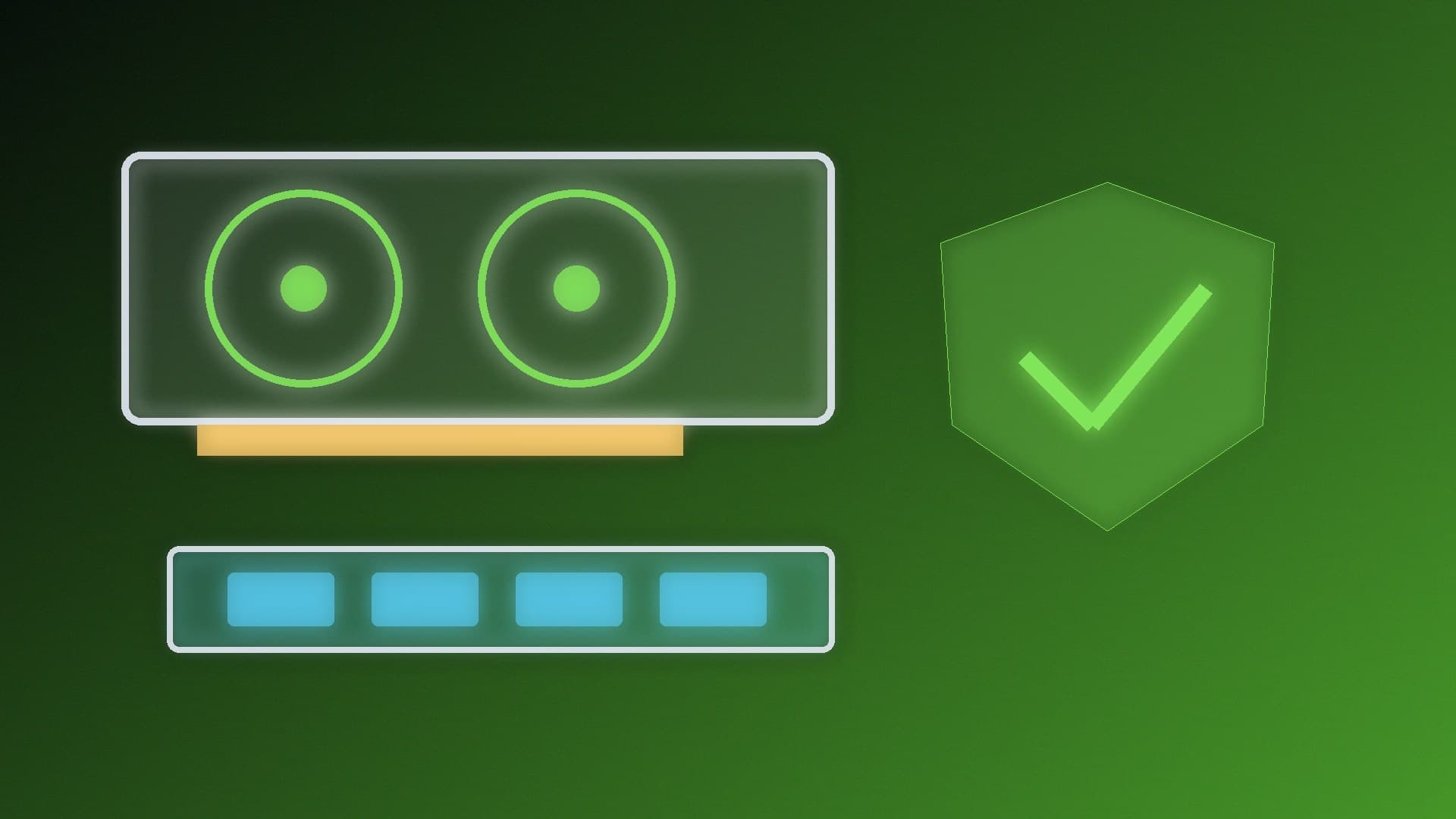
The native examples LM Studio lists are 7B and 8B models of under 5GB in GGUF form, so a mid-range card such as the ASUS RTX 5070 Ti 16GB TUF Gaming OC has plenty of room for them. Not sure what fits? Read how to check if your PC can run a local LLM.
Send your request to the /v1/chat/completions endpoint and include a tools array. LM Studio's documentation uses this example definition:
[
  {
    "type": "function",
    "function": {
      "name": "get_delivery_date",
      "description": "Get the delivery date for a customer's order",
      "parameters": {
        "type": "object",
        "properties": {"order_id": {"type": "string"}},
        "required": ["order_id"]
      }
    }
  }
]
LM Studio injects this list into the model's system prompt using the model's chat template. The name, description and parameters you write are what the model sees when it decides whether to request a tool.
If the model decides to use a tool, LM Studio tries to turn its output into an OpenAI-style response, with the requests in response.choices[0].message.tool_calls. Each one gives the function name and its arguments, such as {"order_id": "123"}. Your code then runs the matching function.
If LM Studio can't parse a correctly formatted tool call, it returns the model's text in the normal response.choices[0].message.content field instead.
Step 5: Send the result back
Add the model's tool-call message and a tool role message holding your function's result to the messages array, then call the API again. In LM Studio's example flow, this second request is sent without the tools list, so the model writes a final answer rather than asking for more tools. LM Studio describes this as the "pedantic" flow for tool use and says you can experiment with it to fit your use case.
Troubleshooting
No tool_calls in the response: LM Studio says smaller models and models not trained for tool use may produce badly formatted tool calls that it can't parse. Check message.content to see what the model actually wrote, and try a model with the hammer badge.
See what the model is sent: run lms log stream in a terminal while you send a request. LM Studio's docs use this to show the default tool-use prompt.
Want a tool-using app rather than code? Our guide to MCP servers in LM Studio covers connecting ready-made tools.
Our verdict
To use tool calling in LM Studio, start the local server, load a model with native tool support (look for the hammer badge), and send a tools array to /v1/chat/completions. Your code runs whatever the model asks for via message.tool_calls and sends the result back. It follows the same format as OpenAI's Function Calling API, and LM Studio says it's expected to work with OpenAI's client SDKs.