The Microsoft Copilot app on Windows can start a voice chat when you say "Hey Copilot", so you don't have to click anything. It's turned off by default. This guide explains how to switch it on, how the wake word is detected and what its limits are, based on Microsoft's support pages.
What you need
The Microsoft Copilot app on Windows. Microsoft says the wake word only works in the Copilot app on Windows desktop. Its voice FAQ says Mac support will follow.
A Microsoft account. Sign in with a personal Microsoft account or a Microsoft 365 work or school account.
A microphone and an internet connection. The wake word is detected on your PC, but Copilot needs to be online to answer.
Step 1: Turn on "Listen for 'Hey Copilot'"
Open the Microsoft Copilot app and sign in.
At the bottom of the left-hand menu, select ... and then Settings.
Select General and turn on Listen for "Hey Copilot".
Microsoft's voice FAQ describes the same toggle under Settings and more > Quick View in some versions of the app, so check there if you don't see it under General.
Step 2: Say "Hey Copilot"
Once the setting is on, say "Hey Copilot" to start a new voice chat. The voice chat controls open on the desktop. Microsoft's FAQ says the controls stay open on the desktop, always on top, as you work across apps.
The wake word itself only responds in English, but Microsoft says the conversation can then continue in any language Copilot supports.
Without the wake word, Microsoft says you can press the Copilot key or, on devices without one, Win + C to open the Quick View window and start a voice chat from there. Our guide to customising the Copilot key explains how to change what that key does.
Step 3: Mute or end the chat
Select Mute or Dismiss on the voice chat controls to stop Copilot listening.
If you haven't spoken for 30 seconds, Copilot warns you that the chat will end. After one minute of inactivity, it ends automatically.
Microsoft notes that background noise can keep a voice chat active even when you've stopped speaking, and that voice conversations may have session limits.
How the wake word works
According to Microsoft:
"Hey Copilot" only works while the Copilot app is running, whether it's open, minimised or in the background.
While the setting is on, Windows shows that Copilot is using your microphone in the system tray.
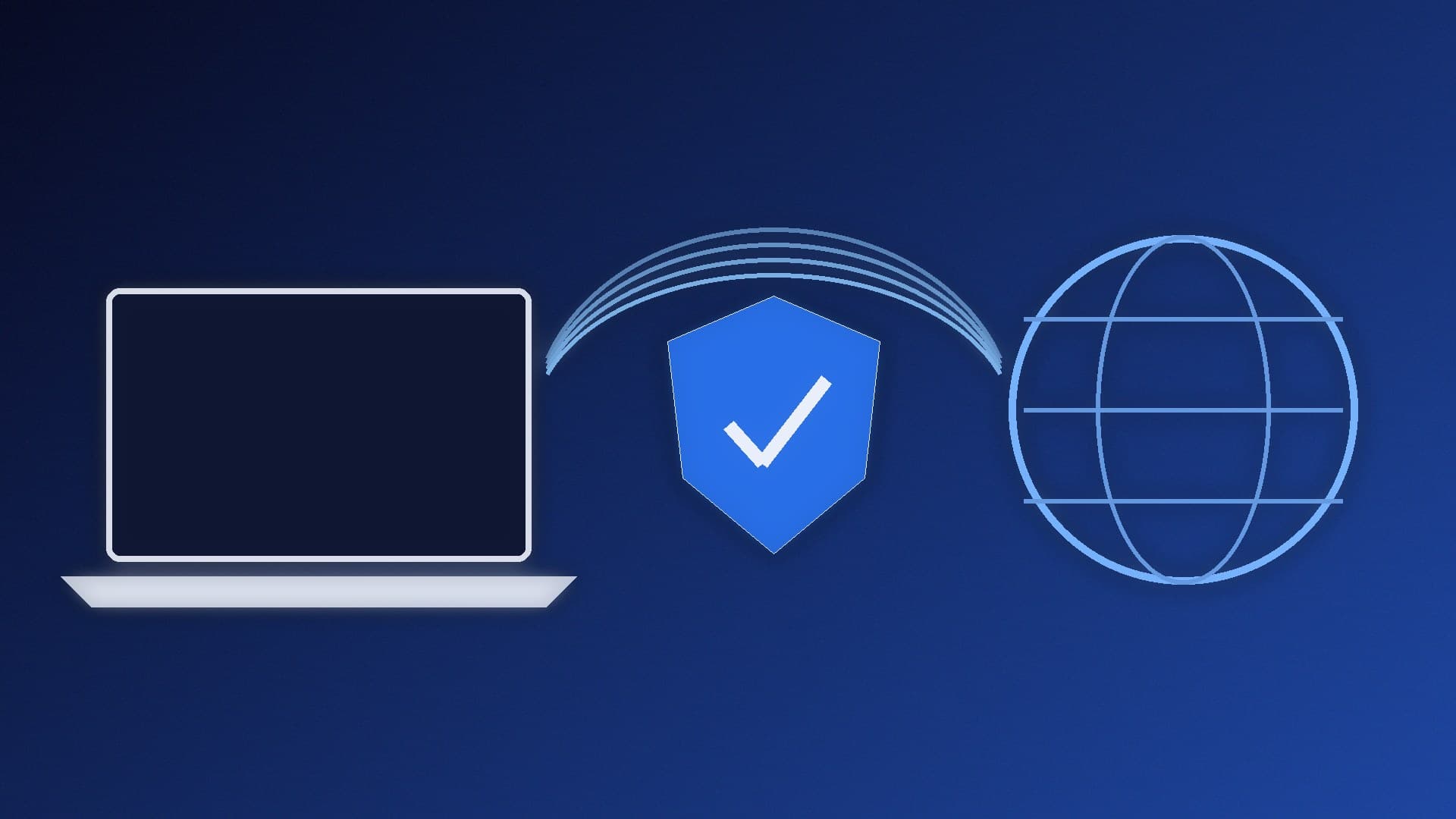
Your PC detects the wake word locally. A small on-device service keeps a 10-second audio buffer in memory to listen for the phrase, and Microsoft says that buffer is never recorded or stored.
When it hears "Hey Copilot", the app opens a voice chat and sends audio from that moment to the Copilot voice service so it can answer.
So the listening for the wake word happens on your PC, but your question is answered by Copilot's online voice service.
Limits to know about
You can't start a new chat with "Hey Copilot" while the screen is locked, or while another app is playing audio.
It needs an internet connection. If you're offline, Copilot tries to connect, fails and ends the chat.
Microsoft says language and accent differences may sometimes trigger a voice chat by accident.
How to turn it off
Go back to the same setting in the Copilot app and turn off Listen for "Hey Copilot". If you don't want Copilot on your PC at all, see our guide to removing Copilot from Windows 11. If you want to control Windows itself with your voice, rather than chat with an assistant, Voice access in Windows 11 is the better tool.