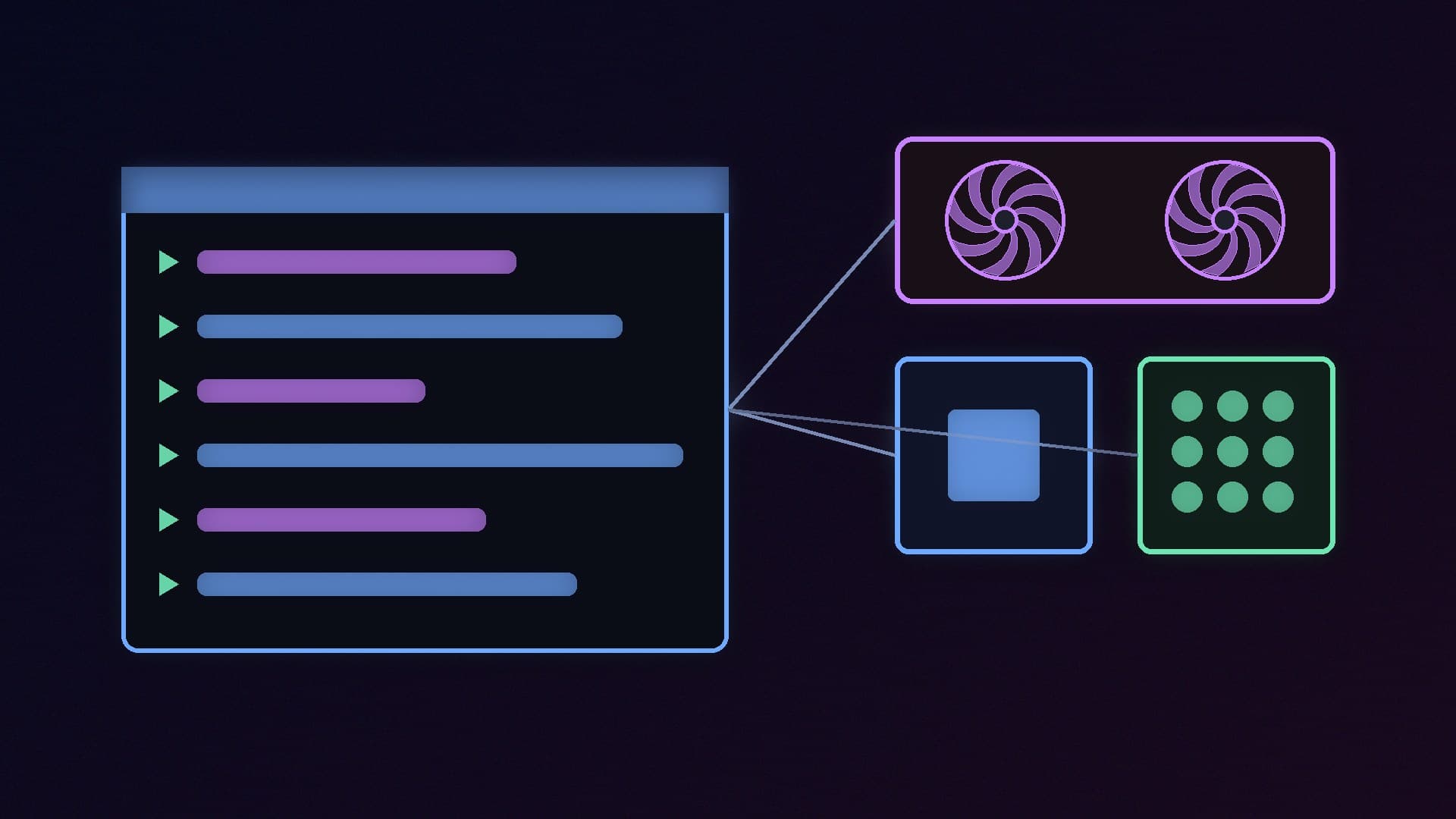
Foundry Local is Microsoft's own tool for running AI models on your PC. Install it with one command and it downloads a version of each model that suits your hardware, whether that is an NVIDIA graphics card, an Intel or Qualcomm NPU, or just your processor. Everything runs on your machine, so your prompts are not sent to a cloud chatbot.
It is aimed mainly at developers who want to build local AI into their apps, but its command-line tool is also a simple way for enthusiasts to try local models. Forge PC has not benchmarked Foundry Local, so we do not quote speeds. This guide follows Microsoft's official Foundry Local documentation and GitHub page, checked on 14 November 2026. The command-line tool is in public preview, so commands may change.
What Foundry Local is (and isn't)
A local model runner with a curated catalogue. Microsoft's GitHub page says the catalogue covers chat models such as GPT OSS, Qwen, DeepSeek, Mistral and Phi, and audio transcription with Whisper.
Hardware-aware. It detects your hardware and picks the best execution provider and device, NPU, GPU or CPU.
OpenAI-compatible. It can run a local server that apps expecting OpenAI's API can talk to.
Not a general model playground. Microsoft says Foundry Local is designed for shipping production applications, not general-purpose experimentation, and its catalogue is intentionally curated. If you want to try any model from Hugging Face, Ollama or LM Studio give you a much wider choice.
Microsoft also notes that Foundry Local may collect usage data and send it to Microsoft. Each model has its own licence terms, which Microsoft says you should review before use.
What hardware you need
Microsoft's Windows guide lists Windows 11 version 24H2 (build 26100) or later, an x64 or Arm64 device with enough memory and disk space for the model you choose, and internet access for the first downloads. It says a dedicated GPU, NPU or Copilot+ PC is not required if the model has a CPU version, but speed depends on your hardware.
Foundry Local uses different "execution providers" (hardware acceleration libraries) depending on what is in your PC. According to Microsoft's CLI reference:
Hardware | Execution provider | Requirement Microsoft lists |
|---|
Any CPU | CPU (MLAS), built in | None; this is the fallback |
Any GPU | WebGPU, built in | The GPU fallback |
NVIDIA GPU | CUDA (built in) and TensorRT for RTX (plug-in) | GeForce RTX 30 series or later, recommended driver 32.0.15.5585 or later, CUDA 12.5 |
Intel | OpenVINO (plug-in) | CPU: 11th Gen or later; GPU: 12th Gen or later; NPU: Arrow Lake or later |
Qualcomm Snapdragon X | QNN (plug-in) | Hexagon NPU, driver 30.0.140.0 or later |
AMD NPU | Vitis AI (plug-in) | Specific Adrenalin and NPU driver versions |
AMD Radeon graphics cards do not get a dedicated execution provider in that list, so they use the WebGPU fallback. If you have a Radeon card, our guide to local AI on AMD GPUs covers alternatives. For what an NPU is, see our NPU explainer.
As always with local AI, video memory and system RAM decide how big a model you can run comfortably. Our guides to how much VRAM you need and how much RAM you need for local AI explain the limits.
Step 1: Install Foundry Local
Update your graphics driver first, using our driver update guide. NVIDIA users should check they meet the minimum driver version above.
Open Windows Terminal or PowerShell and run:
winget install Microsoft.FoundryLocal
Close and reopen the terminal so the foundry command is available, then check it worked:
foundry --version
Microsoft notes that you need admin rights to install software.
Step 2: See which models are available
Run:
foundry model list
The first time you do this, Microsoft says Foundry Local downloads the execution providers for your hardware, with a progress bar, before showing the list. Useful filters include:
foundry model list --device gpu to show GPU models.
foundry model list --type chat to show chat models.
foundry model list --search qwen to search by name.
foundry model list --cached to show models you have already downloaded.
Step 3: Chat with a model
To start chatting, run foundry chat followed by a model alias. Microsoft's example uses a small Qwen model:
foundry chat qwen2.5-0.5b
Foundry Local downloads the model on first use and then starts a chat in the terminal. When you use an alias like this, Microsoft says it automatically picks the best variant for your hardware, for example a CUDA version for an NVIDIA card or an NPU version on a Qualcomm NPU. To force a specific version, use its full model ID instead; Microsoft's example for running on the CPU regardless of hardware is:
foundry run qwen2.5-0.5b-instruct-generic-cpu
foundry run automatically routes to chat or transcription depending on the model, and foundry transcribe handles speech-to-text. Start with small models: a 0.5-billion-parameter model downloads quickly and runs on almost anything, while larger ones need far more memory.
Step 4: Use the local server with other apps
Foundry Local can act as an OpenAI-compatible server on your PC, which lets chat apps and coding tools use your local models.
Run a model, for example foundry run qwen2.5-0.5b, and leave the terminal open.
Run foundry server status to see the local endpoint address. Microsoft notes that Foundry Local assigns a different port each time the server starts.
If you want a fixed port, Microsoft gives this example: foundry server start --port 39839 --idle-timeout 0.
Point your app at http://localhost:PORT/v1, using the port shown.
Microsoft's documentation includes steps for connecting Open WebUI this way, through Admin Settings and Direct Connections. Our Open WebUI guide explains the app itself, and our guide to using Ollama's OpenAI-compatible API covers the same idea with Ollama.
Managing downloads
Models take up disk space. These commands help:
foundry cache location shows where models are stored.
foundry cache list lists downloaded models.
foundry cache remove <model> deletes one; without a model name it removes all cached models after asking.
foundry cache cd <path> moves the cache, handy if your system drive is small. Our disk space guide has more tips.
To update Foundry Local, run winget upgrade --id Microsoft.FoundryLocal. To remove it, run winget uninstall Microsoft.FoundryLocal.
Troubleshooting
Microsoft's troubleshooting guide lists these common problems:
"Request to local service failed": run foundry server restart to restart the background service and fix port problems.
Slow responses: use GPU-optimised variants when available, try a more heavily quantised version (for example INT8 instead of FP16) and watch memory use. Our quantisation explainer explains the trade-off.
Intel NPU not detected: install or update the Intel NPU driver.
Qualcomm NPU errors: update the NPU driver and, if needed, reboot, especially after using Copilot+ features.
foundry status shows diagnostics, and foundry report opens a pre-filled GitHub issue.
Foundry Local, Ollama or LM Studio?
If you are a developer building a Windows app, Foundry Local's hardware detection, NPU support and native SDKs are its big strengths, and Microsoft's documentation notes that Phi Silica, the model built into Windows, is due to be replaced by Aion Instruct; see our report on Microsoft's Aion Instruct. If you simply want to chat with the widest range of models, Ollama and LM Studio remain easier choices; our Ollama vs LM Studio comparison will help you pick.
Our verdict
Foundry Local is a straightforward way to run Microsoft-curated AI models on Windows: install it with winget install Microsoft.FoundryLocal, run foundry model list, then foundry chat with a model alias, and it picks a version suited to your NVIDIA GPU, Intel or Qualcomm NPU, or CPU. Its OpenAI-compatible server makes it easy to plug into other apps. The command-line tool is still in preview, the catalogue is deliberately limited and it may send usage data to Microsoft, so enthusiasts who want maximum model choice may prefer Ollama or LM Studio. Forge PC has not benchmarked Foundry Local; this guide is based on Microsoft's documentation and GitHub page.