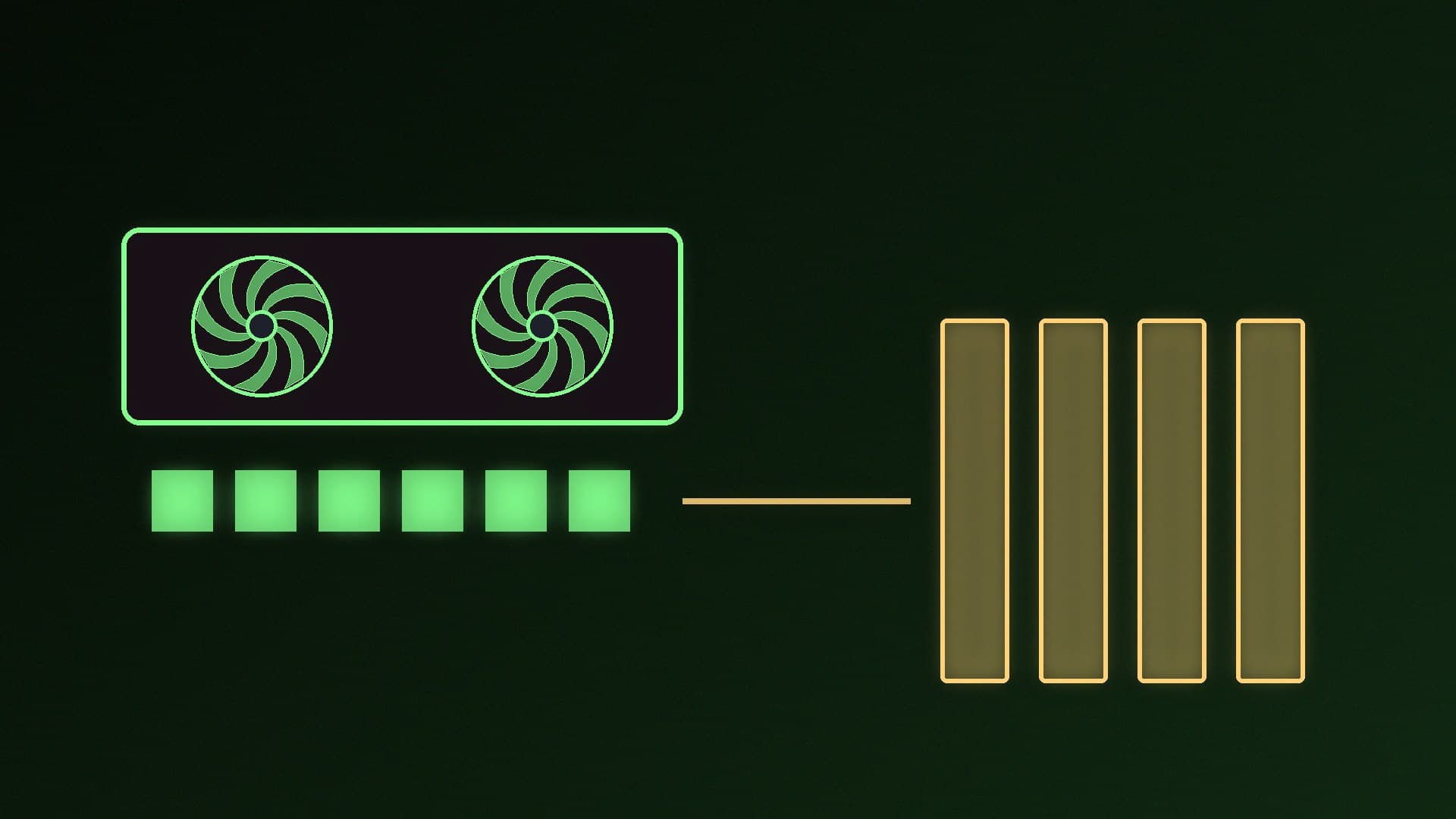
If image generation or a local AI app suddenly slows to a crawl on your NVIDIA graphics card, the cause may be a driver feature called system memory fallback. Instead of crashing when the GPU runs out of video memory (VRAM), the driver lets the app use shared system memory. That keeps things running, but much more slowly.
NVIDIA lets you turn this off for individual programs with the CUDA - Sysmem Fallback Policy setting. Forge PC hasn't benchmarked the setting for this guide; the steps below follow NVIDIA's own support article.
What system memory fallback does
NVIDIA explains that in driver 536.40 it added a method that allows an application to use shared memory when it has exhausted GPU memory. Apps that previously crashed when they ran out of VRAM can carry on, "albeit at lower speeds". The switch happens when the app gets close to maxing out GPU memory, so it can be seamless and you may not notice until performance drops.
NVIDIA gives Stable Diffusion as an example: it often needs close to 6GB of GPU memory, so on 6GB cards the fallback can kick in and slow generation down. In driver 546.01 and later, NVIDIA added a setting to disable the fallback. The trade-off, in NVIDIA's words, is that performance should be stable "at the risk of a crash" if you use a setting that needs more GPU memory than you have.
Should you turn it off?
Turn it off if you'd rather get an out-of-memory error than an unexpectedly slow run, so you know to lower the resolution, batch size or model size.
Leave it on if your workflows only occasionally go over your VRAM and you'd rather finish slowly than crash.
To see whether you're going over your VRAM, our guide to checking VRAM usage in Windows shows where Task Manager reports dedicated and shared GPU memory.
How to change CUDA - Sysmem Fallback Policy
NVIDIA recommends setting this per program, rather than globally. These steps follow NVIDIA's guide:
Find the program's executable. Start your AI app, open Task Manager and find the process doing the work. For most Stable Diffusion and many local AI front ends, that's python.exe. Right-click it and choose Open file location (or note its path), because many apps ship their own copy of Python.
Open NVIDIA Control Panel. Right-click the desktop and select NVIDIA Control Panel.
Under 3D Settings, click Manage 3D settings.
Open the Program Settings tab and click Add.
Click Browse, select the executable from step 1 and click Open.
Find CUDA - Sysmem Fallback Policy and set it to Prefer No Sysmem Fallback.
Click Apply.
Restart the app. NVIDIA says the app must be restarted for the change to apply.
How to undo it
Go back to Manage 3D settings > Program Settings, select the same executable, set CUDA - Sysmem Fallback Policy to Driver Default, click Apply and restart the app.
If you now get out-of-memory errors
That's expected when a job needs more VRAM than your card has. To make it fit:
Lower the image size or batch size in your image generator, or try a smaller model.
Use low-VRAM options. Our guide to running ComfyUI with low VRAM covers them.
For language models, choose a smaller model or quantisation; see running a local LLM on 8GB of VRAM.
Close other GPU-heavy apps, such as browsers and games, before you start.
Consider more VRAM for your next upgrade; our how much VRAM guide explains what different workloads need.
Our verdict
NVIDIA's system memory fallback stops CUDA apps crashing when they run out of VRAM by using slower shared system memory instead, which can make Stable Diffusion and other local AI apps suddenly slow. On driver 546.01 or later you can turn it off per app: in NVIDIA Control Panel, add the app's python.exe under Manage 3D settings > Program Settings, set CUDA - Sysmem Fallback Policy to Prefer No Sysmem Fallback, apply and restart the app. Expect out-of-memory errors instead of slowdowns, and set it back to Driver Default to undo. Forge PC hasn't benchmarked the setting.