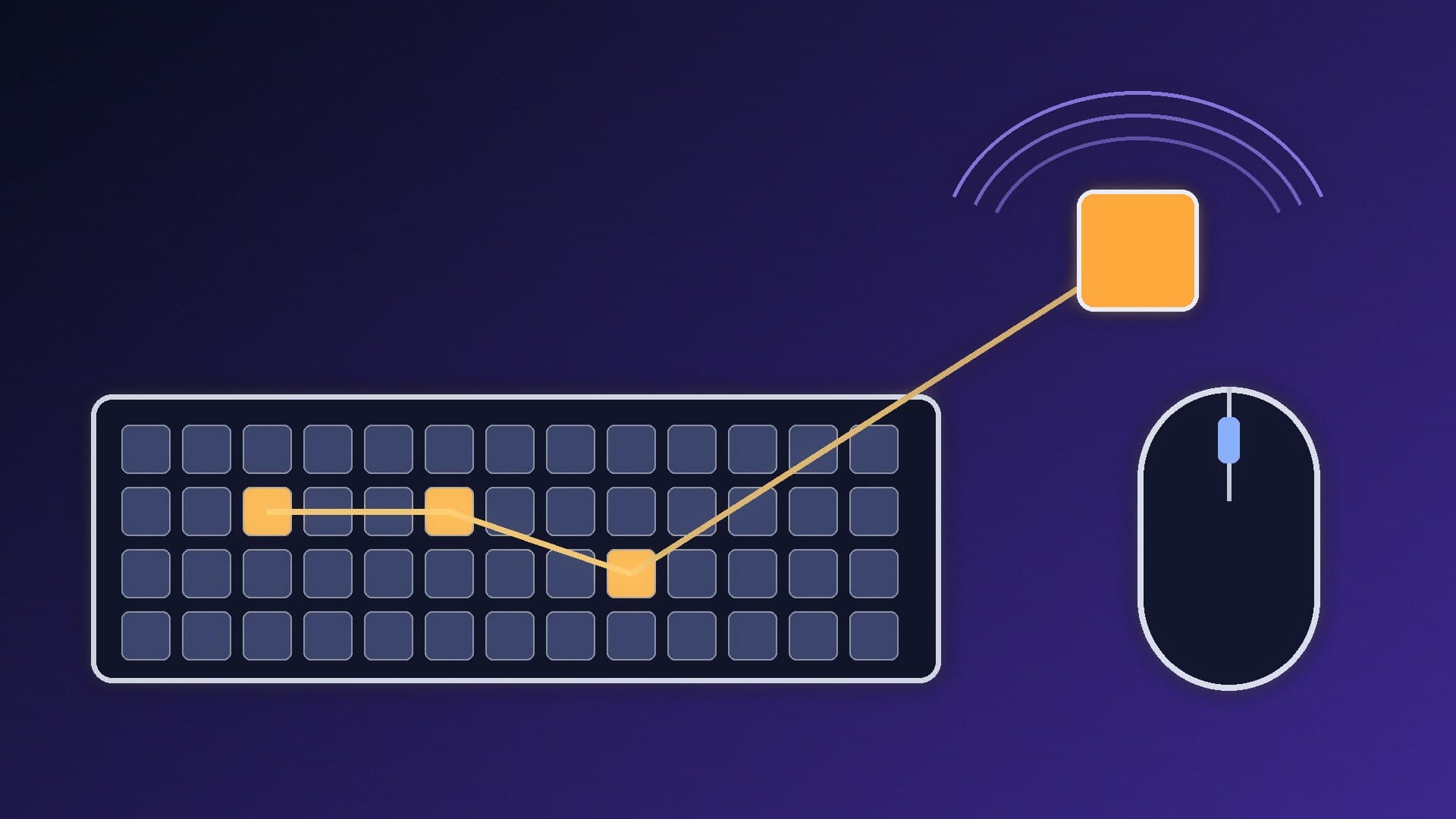
A macro turns a sequence of key presses, clicks or typing into a single shortcut. On a PC that might mean typing your email address with three keystrokes, opening a set of apps with one key, automating a dull spreadsheet task, or binding a combo to a spare mouse button. Windows doesn't call it "macro software", but there are good free options, including two from Microsoft.
At a glance
Tool | Best for | How you build macros | Cost |
|---|
AutoHotkey v2 | Power users and anything custom | Short scripts | Free, open source (GNU GPLv2) |
Power Automate for desktop | Automating apps without code | Drag-and-drop actions or a recorder | Preinstalled in Windows 11; works with a free Microsoft account |
PowerToys Keyboard Manager | Simple remaps and text shortcuts | Point-and-click settings | Free (part of PowerToys) |
Your mouse or keyboard's app (e.g. SteelSeries GG, Razer Synapse 4) | Gaming macros on your own peripherals | Record in the app | Free with compatible hardware |
Best overall: AutoHotkey
AutoHotkey describes itself as "The ultimate automation scripting language for Windows". It's free and open source under the GNU GPLv2, and its site lists form fillers, auto-clicking and macros among the things you can build. You can define hotkeys for the mouse and keyboard, remap keys or buttons, and set up hotstrings, which are autocorrect-style replacements such as expanding a short abbreviation into a full sentence.
The catch is that you write scripts rather than clicking through menus. AutoHotkey says beginners can start with simple built-in commands and its documentation includes tutorials on writing hotkeys, sending keystrokes, running programs and managing windows. The current stable version is 2.0.32, according to the official download page.
Our AutoHotkey how-to walks through your first script.
Choose AutoHotkey if you want a tool that can automate almost anything on the desktop and you don't mind learning a little scripting.
Best no-code option: Power Automate for desktop
Microsoft says Windows 11 includes Power Automate for desktop as a preinstalled app. It's a low-code tool with a catalogue of hundreds of prebuilt actions and a recorder that captures mouse and keyboard activity and turns each step into an action you can edit. Microsoft's examples include organising files and folders, pulling data from websites into Excel, and automating both modern and older desktop apps.
That makes it the best fit for repetitive office-style jobs, such as organising files and folders or moving data from a website into a spreadsheet, rather than in-game macros. You can sign in with a free Microsoft account. It also runs on Windows 10, but Microsoft says devices with ARM processors aren't supported, and on Home editions you can build and monitor flows but can't trigger desktop flows from the cloud.
Choose Power Automate if you want to automate a multi-step task across apps or websites without writing code.
Best for simple remaps: PowerToys Keyboard Manager
Keyboard Manager is part of Microsoft's free PowerToys. It can remap a key to another key or a shortcut, swap one shortcut for another, and map a key or shortcut to a text sequence, which makes it handy for typing an address or a signature. Shortcuts can also start an app or open a URI, and you can apply shortcut remaps only in specific apps rather than across Windows.
There are limits. Microsoft says PowerToys must be running for remaps to apply, they don't work on password screens, and they won't apply to windows running as administrator unless PowerToys is also running as administrator. Some keys, such as those reserved by Windows, can't be remapped. Microsoft also says Keyboard Manager shouldn't be used when playing video games, because intercepting key presses currently affects frame rates.
Our list of the best PowerToys utilities covers the rest of the suite, and PowerToys Keyboard Manager vs AutoHotkey compares these two in more depth.
Choose Keyboard Manager if you only need a few remaps or text shortcuts and want something you can set up in minutes.
Best for gaming: your peripheral's own software
For in-game macros, the app that came with your gaming mouse or keyboard is usually the simplest route, and it's free if you own the hardware. Microsoft itself advises against using Keyboard Manager in games, so this is the place to look instead.
SteelSeries GG (Engine): SteelSeries says you can record macros in-game or directly in Engine, then edit the delays and buttons, and rebind a button to any other mouse button, key or system function. Settings can be saved to game profiles. See our SteelSeries GG guide.
Razer Synapse 4: Razer lists remapping buttons and creating advanced macros, which it describes as strings of complex button presses executed with a single click, plus Hypershift, which gives a button a secondary set of functions. See our Razer Synapse 4 guide.
These apps only work with that brand's compatible devices, such as the SteelSeries Apex Pro Gen 3 or Razer Huntsman V3 Pro keyboards. For Logitech and Razer side by side, see Logitech G HUB vs Razer Synapse.
A word of caution: competitive online games can have their own rules about macros and automation, so check them before using any macro tool in multiplayer.
Choose your peripheral app if you want gaming macros on mouse buttons or keys and already own compatible hardware.
How to choose
Typing shortcuts and simple remaps: PowerToys Keyboard Manager.
Automating a task across apps or websites without code: Power Automate for desktop.
Anything custom, including complex hotkeys and window control: AutoHotkey.
Macros inside games: your mouse or keyboard's own software.